
Testing Internal Apps
BlinqIO AI Test Engineer offers two ways to record and automate your tests: Web Recorder (browser-based) and Client Recorder (desktop application). This guide helps you choose the right one for your needs.
We Recommend the Web AI Recorder
The Web AI Recorder is the easiest to get started, as it requires no installation or system-level setup. Access to the Mac/Windows Client Recorder is only available upon explicit request.
Please email support@blinq.io if you need access to the Client Recorder.
Quick Decision Guide
| Your Situation | Recommended Version |
|---|---|
| Just getting started with BlinqIO | Web Recorder |
| Your application is publicly accessible on the internet | Web Recorder |
| Want the fastest setup (no installation) | Web Recorder |
| Need basic UI test automation | Web Recorder |
| Your application is internal/behind VPN/firewall | Client Recorder |
| Need API testing capabilities | Client Recorder |
| Need to verify file downloads | Client Recorder |
| Need page snapshot comparisons | Client Recorder |
Web Recorder (Beta)
The Web Recorder runs entirely in your browser - no installation required. It's perfect for getting started quickly and works great for most common test automation scenarios.
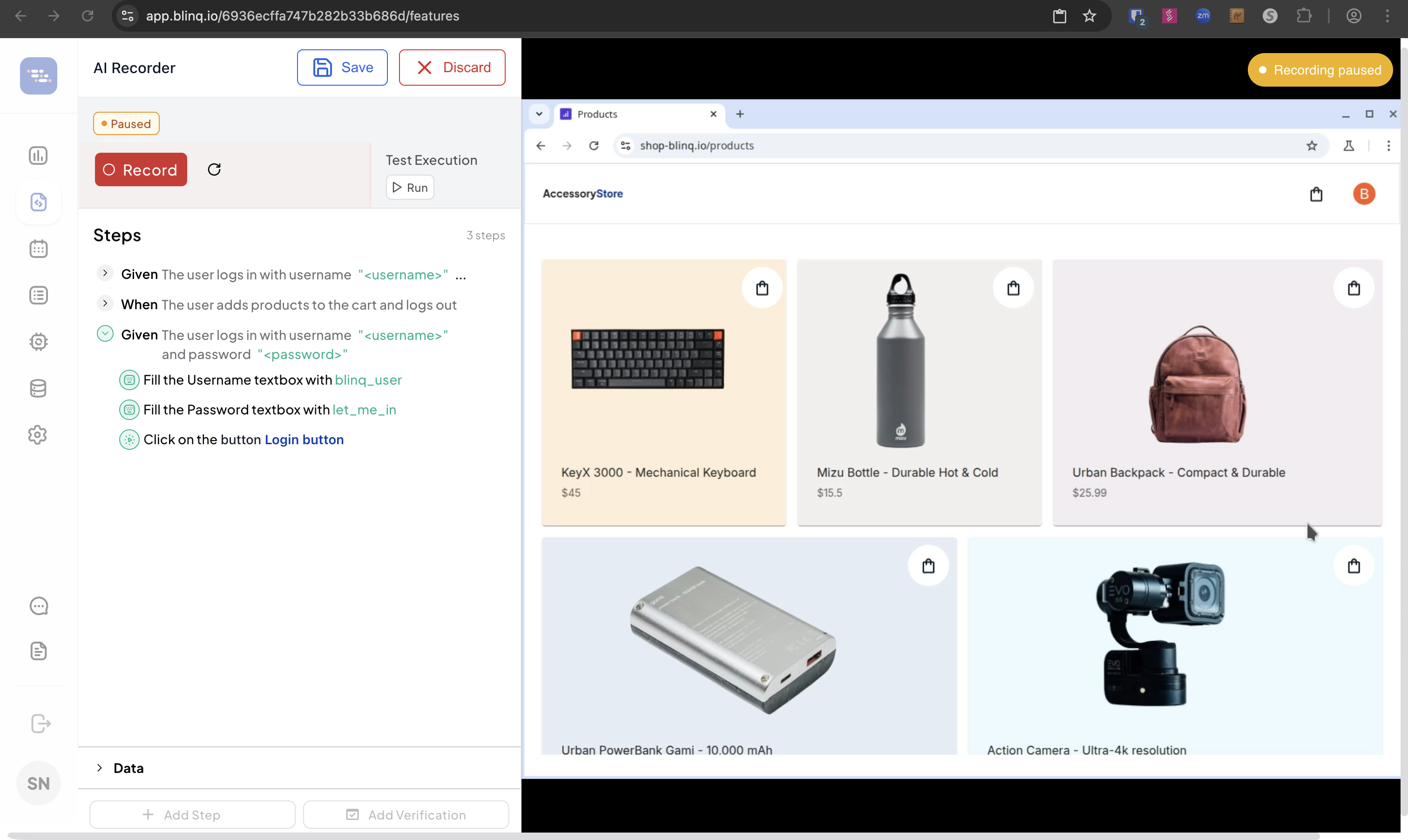
Best for:
- Teams wanting instant onboarding
- Testing publicly accessible applications
Limitations:
- Currently in beta with evolving features
- Some advanced assertions are not yet available.
- Cannot access applications behind firewalls/VPNs
Client Recorder (Mac/Windows)
The Client Recorder is a desktop application (available for Mac/Windows) that provides complete feature access and advanced capabilities.
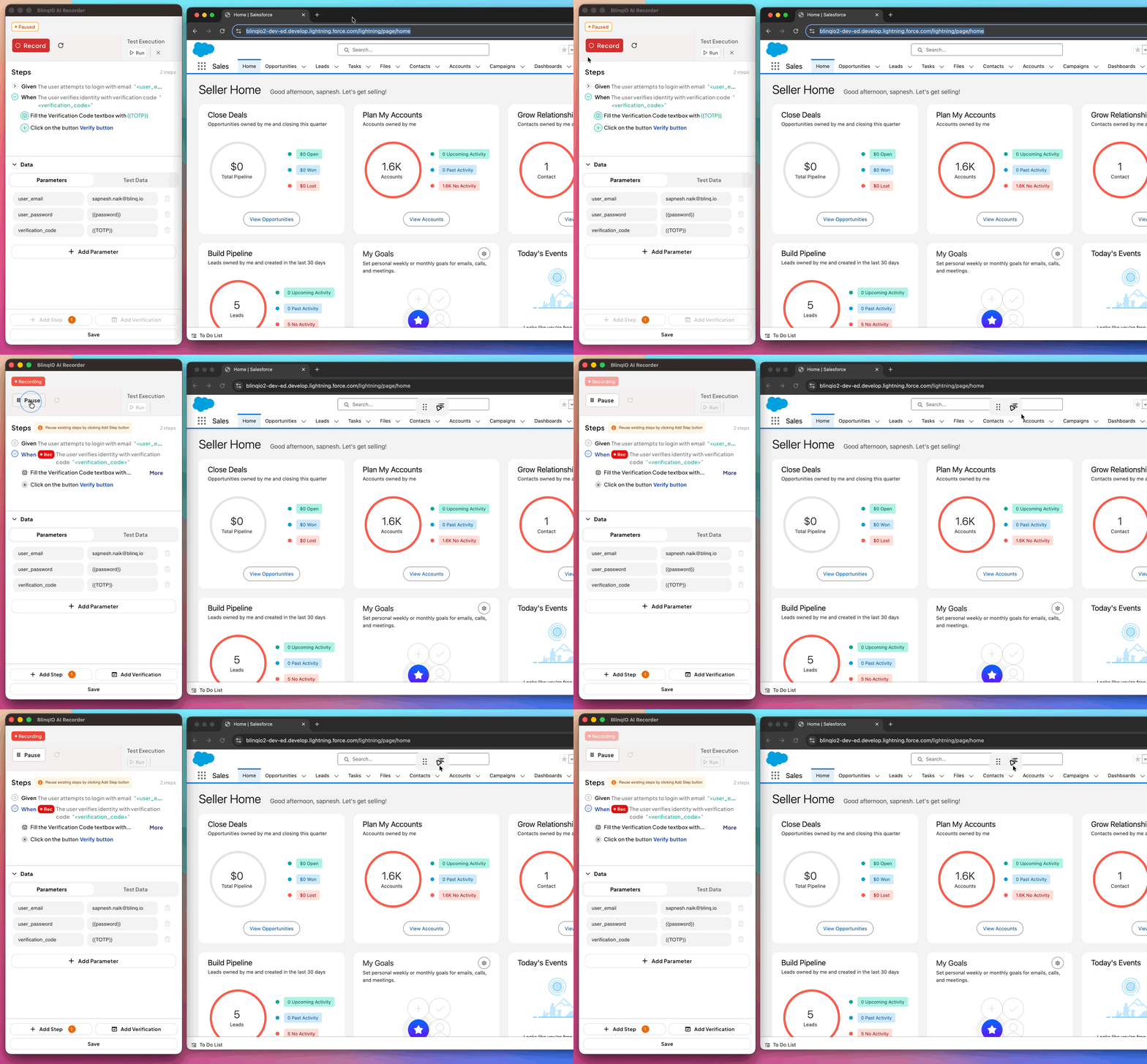
Best for:
- Enterprise environments with internal applications
- Advanced testing scenarios (API testing, verifying file downloads)
- Teams needing local test execution
Requirements:
- Must be enabled by the support team (email support@blinq.io)
- Requires desktop application installation