
Projects & Environments
BlinqIO organizes your work into Projects, each with its own test tree and Environments (Test URLs). This separation lets you manage multiple applications or teams from a single account.
Projects
A project is your top-level workspace. Everything (folders, features, tests, and environments) belongs to a project.
Project properties
| Property | Description |
|---|---|
| Name | Display name (e.g., "E-Commerce Platform") |
| Description | Short summary of the project's purpose |
| Color | Accent color used for the project avatar |
| Test Tree | The folder/feature/test hierarchy |
| Environments | List of Test URLs for this project |
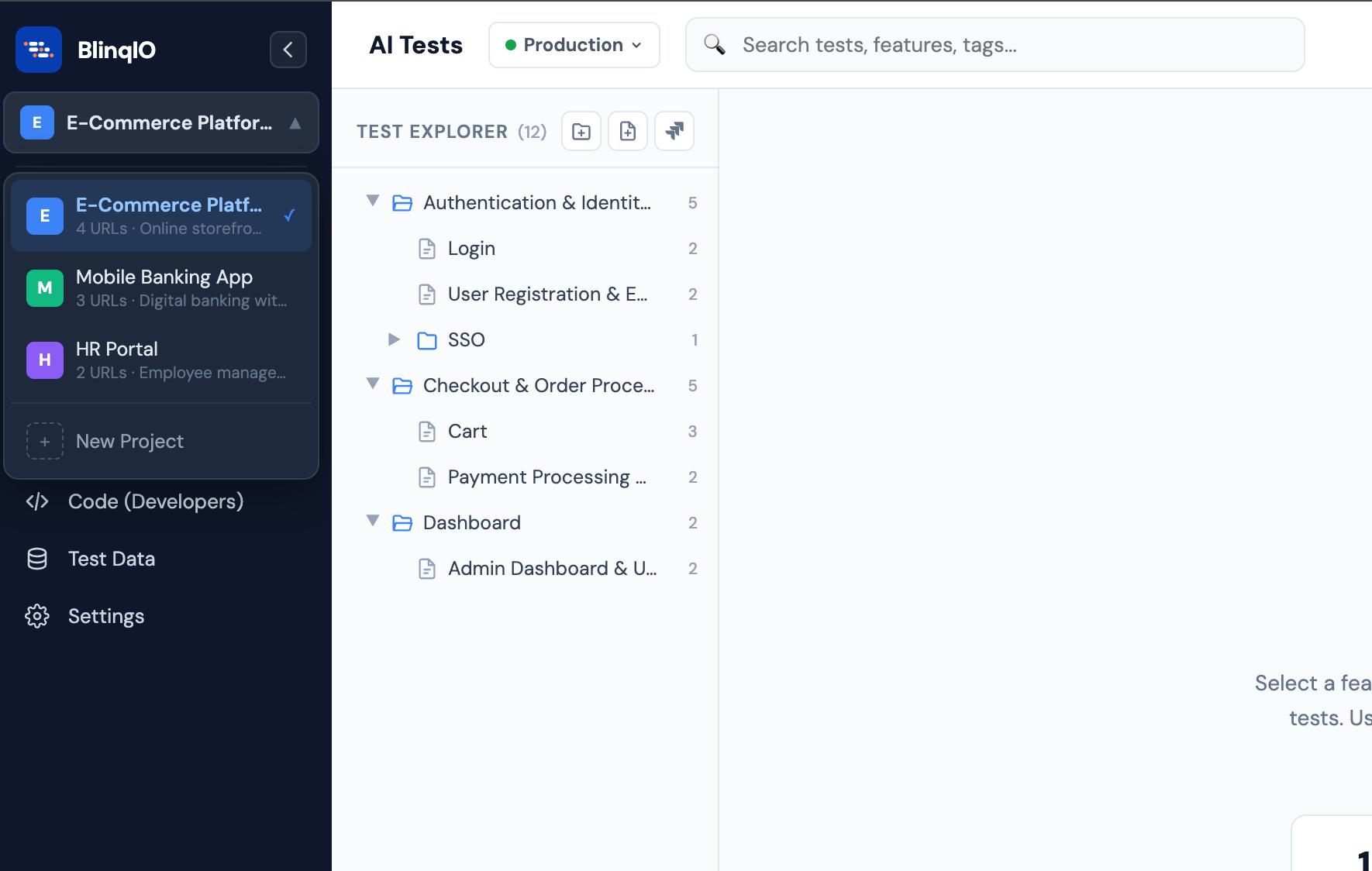
Switching projects
- Click the Project Switcher in the navigation sidebar
- Select a project from the dropdown
- The test tree, selections, and search reset to the new project's context
- The environment selector updates to show the new project's URLs
Environments (Test URLs)
An environment represents a target URL where your tests will run. Most teams maintain multiple environments for different stages of their deployment pipeline.
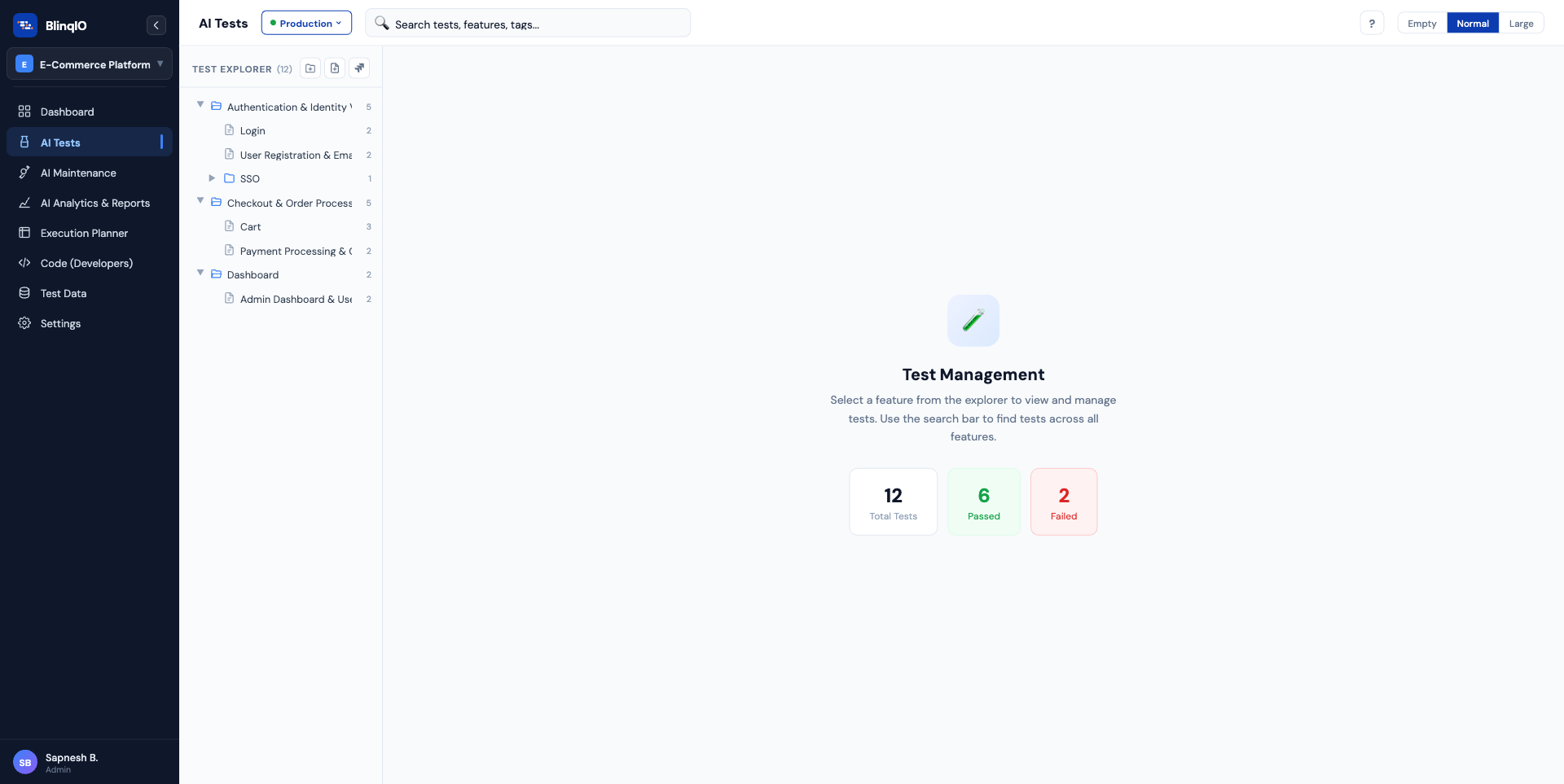
The environment selector
The environment selector appears on both the AI Tests page and the AI Test Engineer. It shows the current environment name. Click to switch or hover to see the full URL.
Managing environments
Click "Manage URLs" in the environment dropdown to open the management modal:
Add an environment
- Click Add to create a new entry
- Enter a name (e.g., "Staging") and URL (e.g.,
https://staging.example.com) - The new environment is immediately available in the selector
Edit an environment
- Click any name or URL to edit inline
- Press Enter to confirm or Escape to cancel
Delete an environment
- Click the Remove button next to the environment
- You cannot delete the last remaining environment: at least one must exist
- If the deleted environment was selected, the selection automatically adjusts
Environment switching in the editor
Changing environments in the editor triggers a confirmation modal because:
- The browser preview reloads to the new URL
- All step statuses reset (a step that passed on Staging may behave differently on Production)
- The current recording session (if any) is lost
The confirmation modal explains these consequences and offers Cancel or Confirm options. 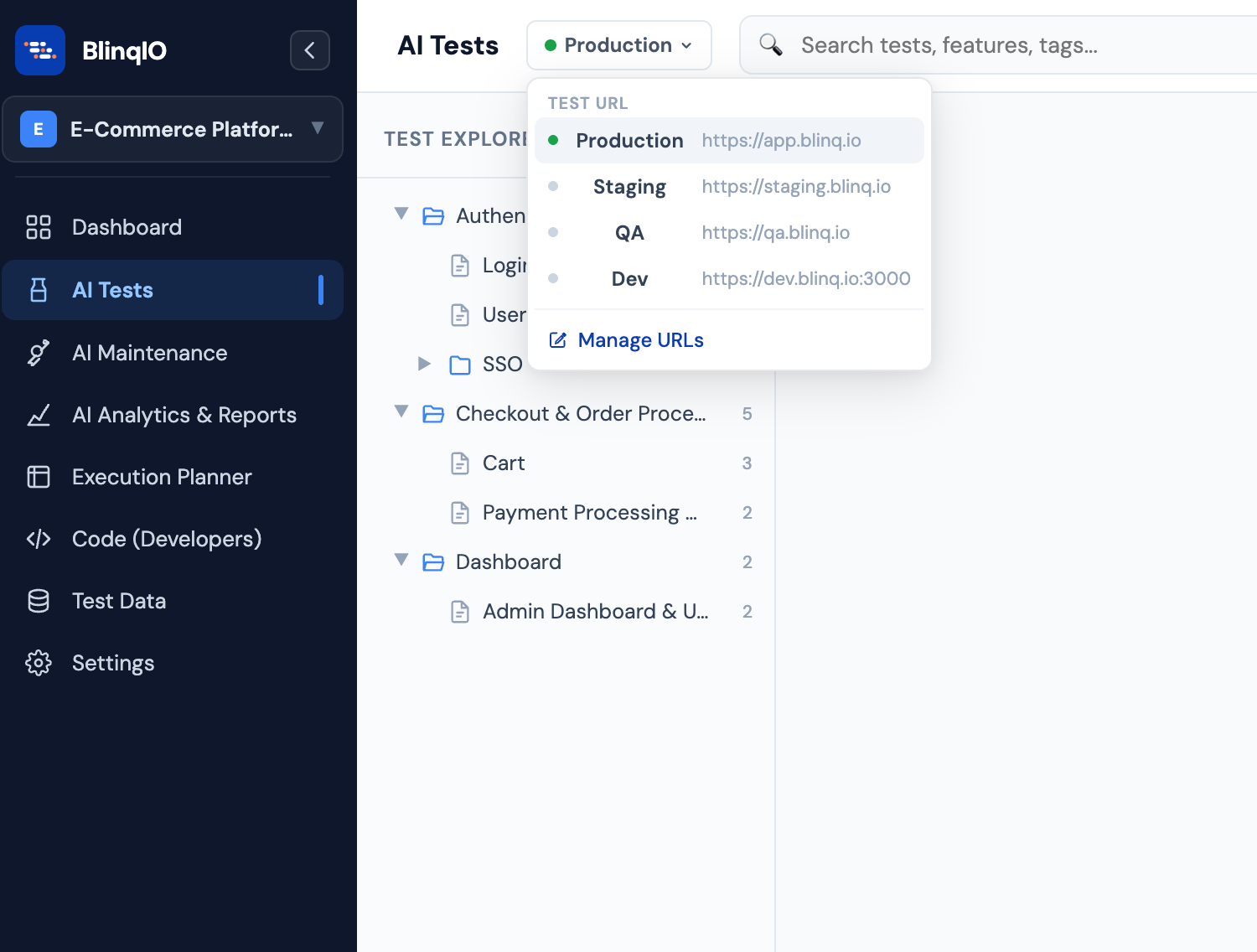
What's next
- Organizing Tests: Folders, features, tags, and search
- AI Test Engineer Overview: Building tests in the editor