
Running Tests
BlinqIO lets you run your test steps directly in the browser to validate they work before saving. The execution engine runs steps sequentially and provides real-time feedback.
Run All
Click Run All in the bottom action bar to execute every implemented step from start to finish.
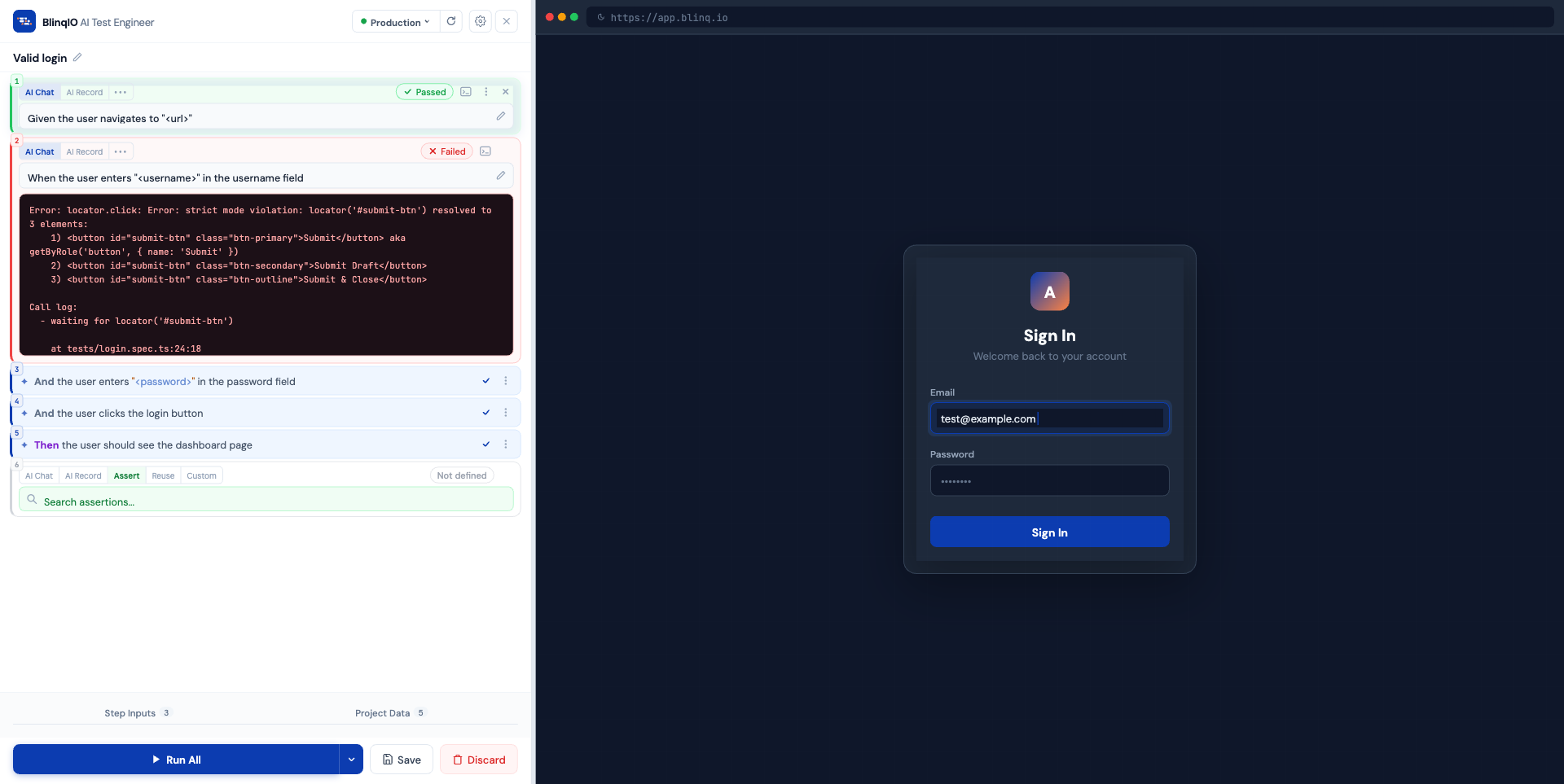
During execution:
- The browser preview resets to a fresh state
- Each step runs sequentially
- The running step is highlighted
- The view auto-scrolls to keep the running step visible
- The browser preview updates in real-time as actions execute
Run results
| Result | Visual | What happens |
|---|---|---|
| Pass | Green checkmark, green background | Step executed without errors |
| Fail | Red X, red background | Playwright threw an error (timeout, element not found, assertion failure) |
On failure, the run stops immediately. The failed step shows a detailed Playwright error trace that auto-scrolls into view.
Run a range
For larger tests, you may want to run only a subset of steps:
- Click the dropdown arrow next to Run All
- Enter the start and end step numbers
- Click Run Range to execute only those steps
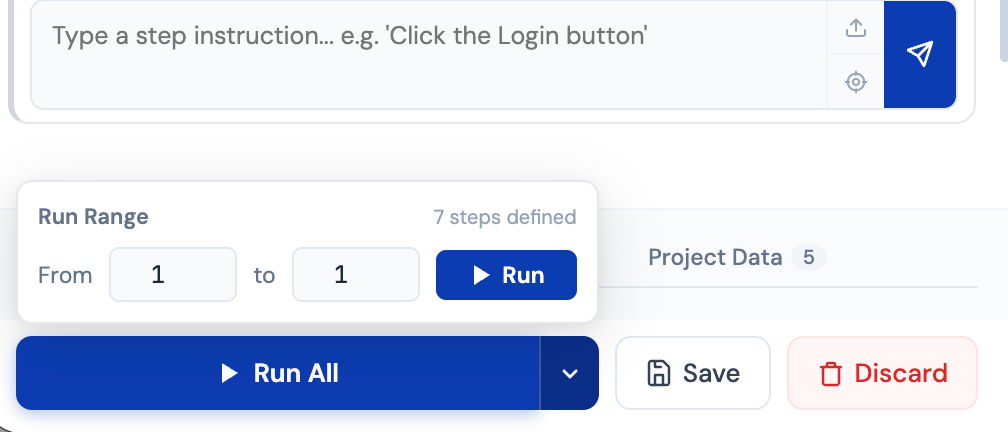
This is useful for debugging a specific section without re-running the entire test.
Pause, resume, and stop
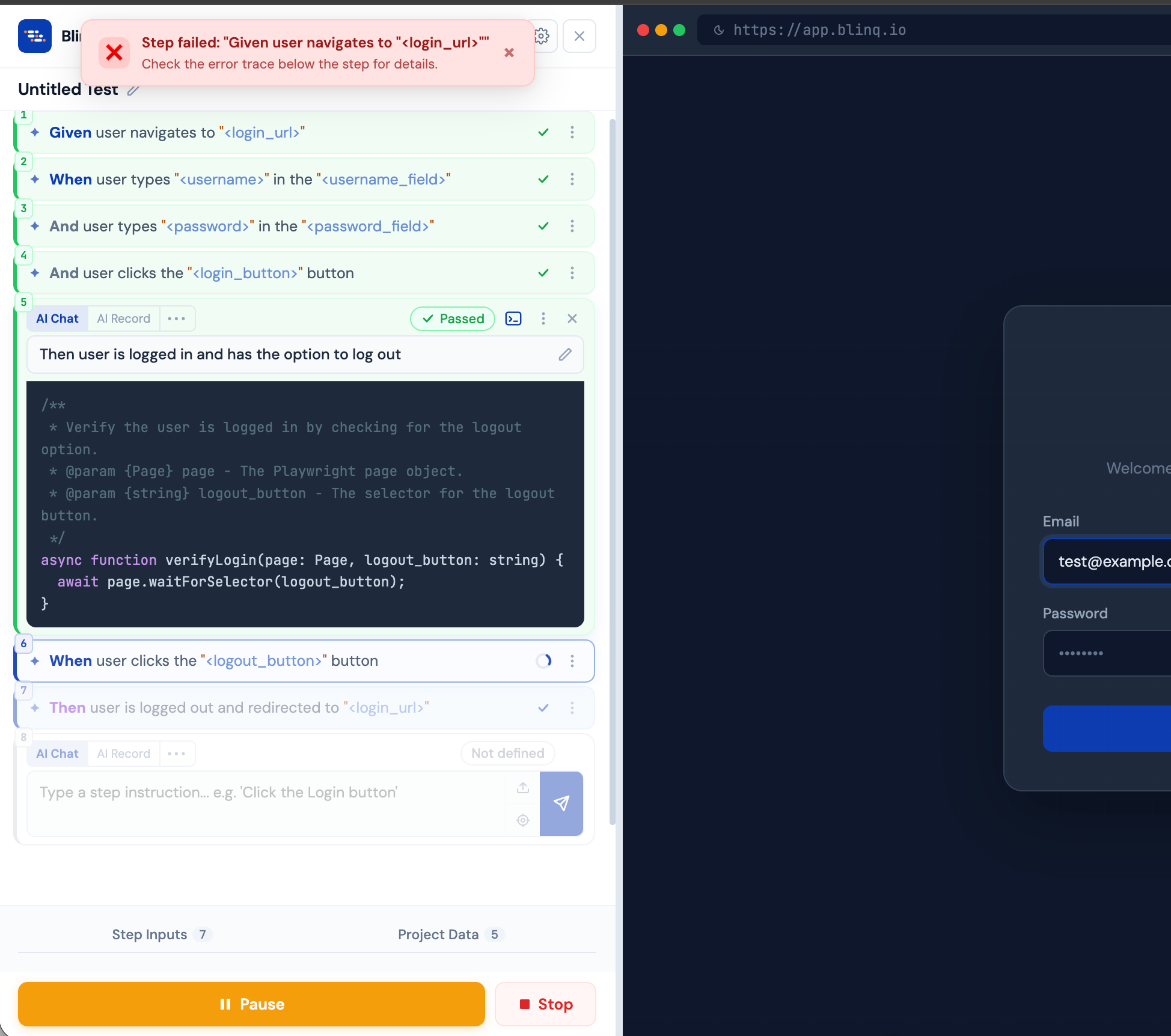
During a run, the bottom action bar shows execution controls:
| Control | Behavior |
|---|---|
| Pause | Halts execution between steps. The current step finishes before pausing. |
| Resume | Continues execution from where it paused. |
| Stop | Aborts the run immediately. |
Interpreting failures
When a step fails, the error trace provides:
- Error type (e.g.,
TimeoutError,Error) - Error message (e.g., "Timed out waiting for selector")
- Stack trace showing which line of generated code failed
- Selector that couldn't be found (if applicable)
Common failure causes
| Symptom | Likely cause | Fix |
|---|---|---|
| Timeout waiting for selector | Element doesn't exist or isn't visible | Check the page state; the element may require scrolling or a prior action |
| Element not found | Selector is stale or page structure changed | Re-record or re-generate the step with AI |
| Assertion failed | Page content doesn't match expected value | Update the assertion or check for dynamic content |
| Navigation timeout | Page didn't load in time | Check the target URL and network conditions |
What's next
- Saving & Discarding: Save your validated test
- Test Data & Parameters: Manage dynamic values