
AI Tests
The AI Tests page is your central hub for organizing, searching, and running your entire test suite. It provides a folder-based explorer with project switching, bulk operations, and detailed test views.
Projects
The Project Switcher in the sidebar lets you switch between independent workspaces, each with its own test tree and environments.
- Click the current project to open the dropdown
- Switch between projects to see different test suites
- Each project shows its name, description, and environment count
- Switching projects resets the folder tree, selections, and search
See Projects & Environments for details on managing projects.
Folder tree
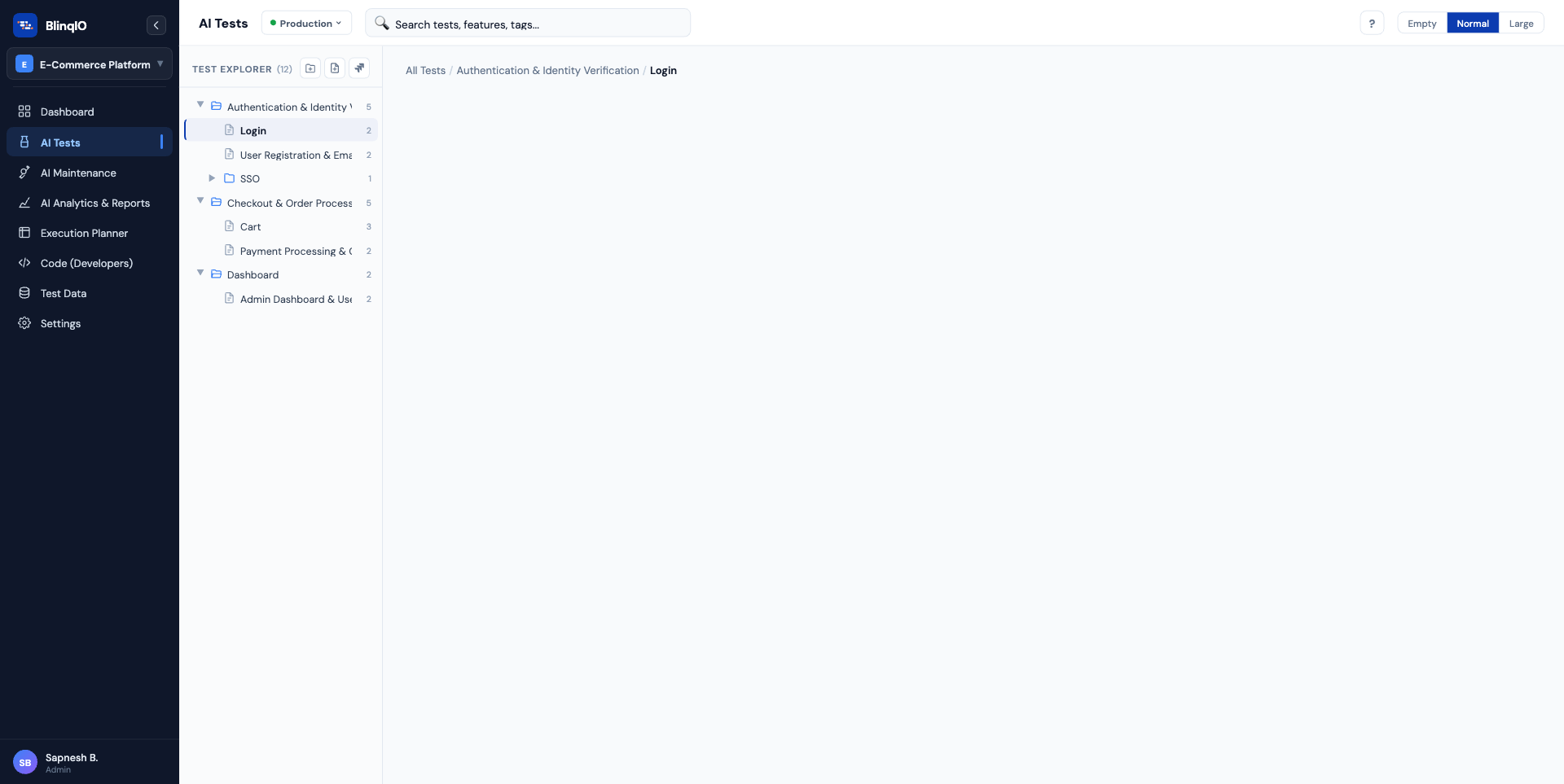
The folder tree in the left panel shows your test hierarchy:
Test Explorer (42 tests)        [+ Folder] [+ Feature] [Jira]
├── Authentication/
│   ├── Login (3 tests)
│   └── Password Reset (2 tests)
├── Checkout/
│   └── Payment (4 tests)
└── Dashboard/ (1 test)
Operations
- Expand/Collapse folders by clicking the arrow
- Right-click any item for a context menu: New Folder, New Feature, Rename, Delete
- Drag and drop to reorganize folders and features
- Header buttons: Create New Folder, New Feature, or Import from Jira (coming soon)
Test cards
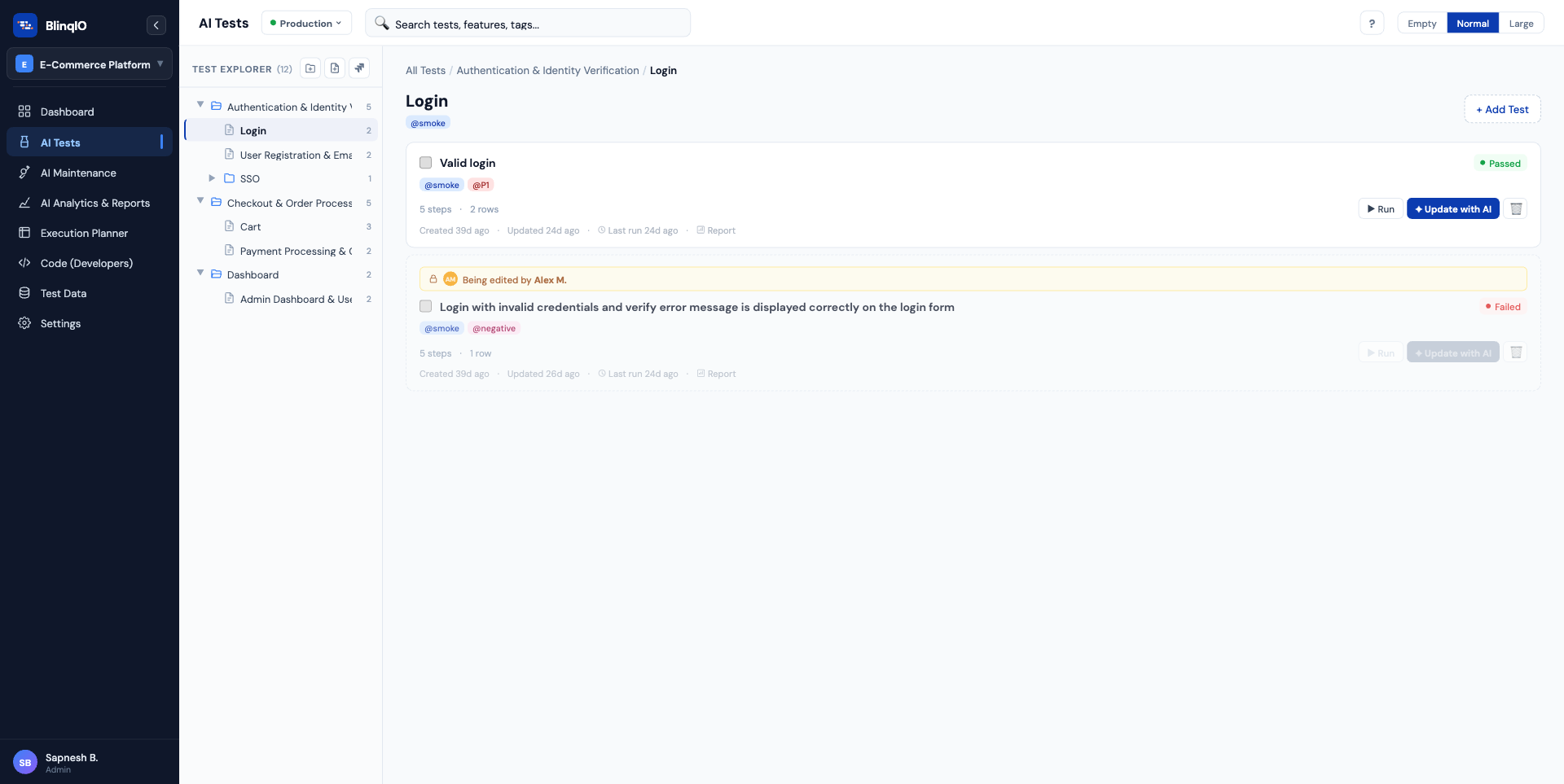
Each test appears as a card showing its name, status (Passed/Failed/Not Run), tags, step count, and when it was last updated. Hover to reveal actions: Run, Edit with AI, and Delete.
Test detail panel
Click a test card to expand its detail view where you can edit the name, manage tags, view steps, edit parameter values, and run the test.
Search
The search bar filters tests across all features by:
- Test name
- Tag name
- Feature name
Results update in real-time as you type.
Bulk actions
Select multiple tests (checkboxes on cards) to enable bulk operations:
- Batch run: Execute all selected tests
- Batch delete: Remove all selected tests
Test locking
When another team member is editing a test, it's locked to prevent conflicts. A lock indicator shows who is currently editing, and all editing actions are disabled until they're done.
Onboarding wizard
First-time users see a 7-step guided tour that introduces:
- Application URL configuration
- Creating tests with AI
- Viewing generated code
- Running and analyzing tests
- AI-powered test maintenance
- Navigating to the editor
The wizard forces users to click "Create with AI" to complete onboarding, ensuring they experience the core workflow. A "?" button in the top bar lets you replay the tour anytime.
What's next
- Projects & Environments: Managing projects and test URLs
- Organizing Tests: Folders, features, tags, and search strategies
- AI Test Engineer Overview: The authoring environment