
AI Test Engineer
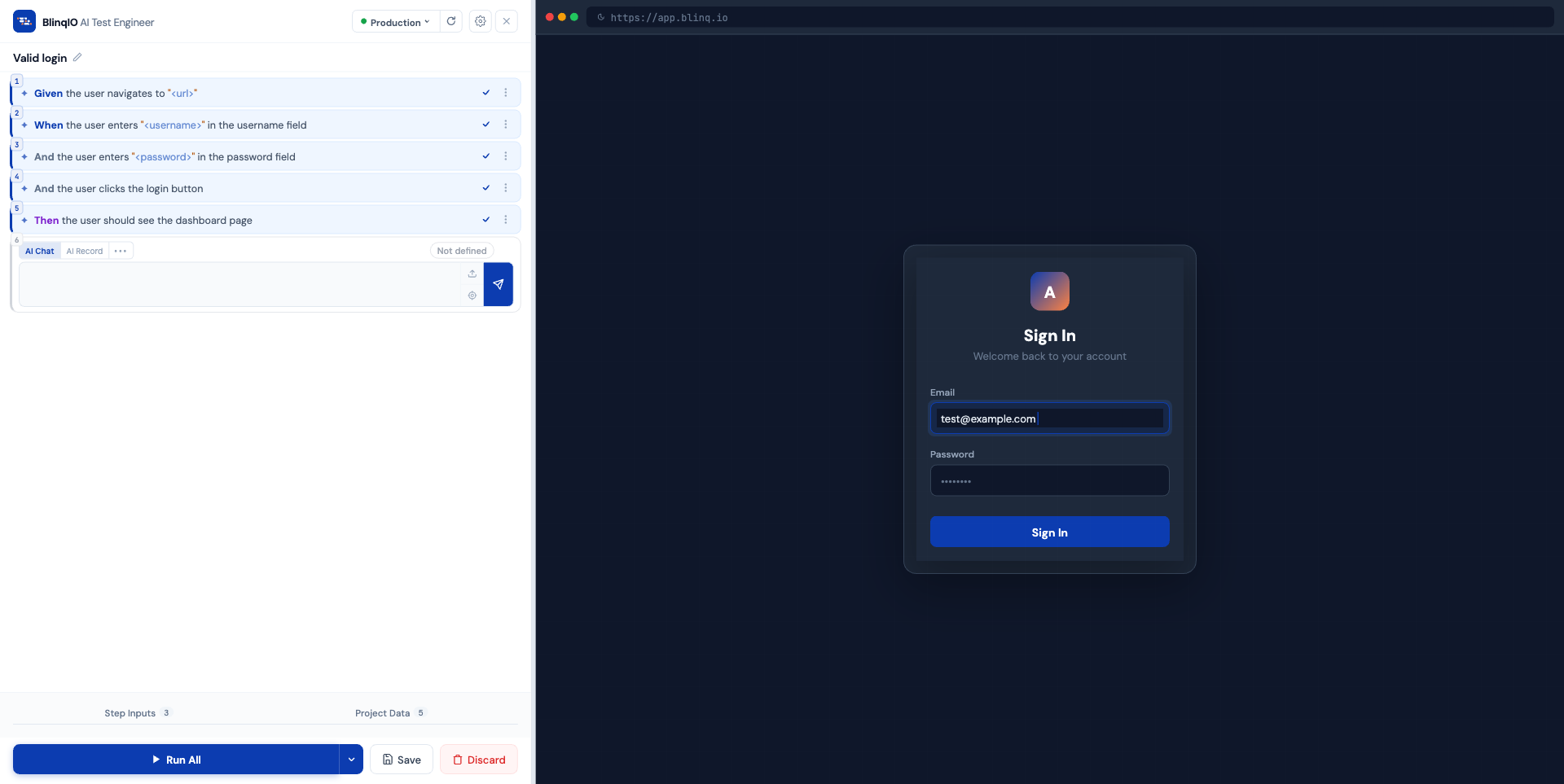
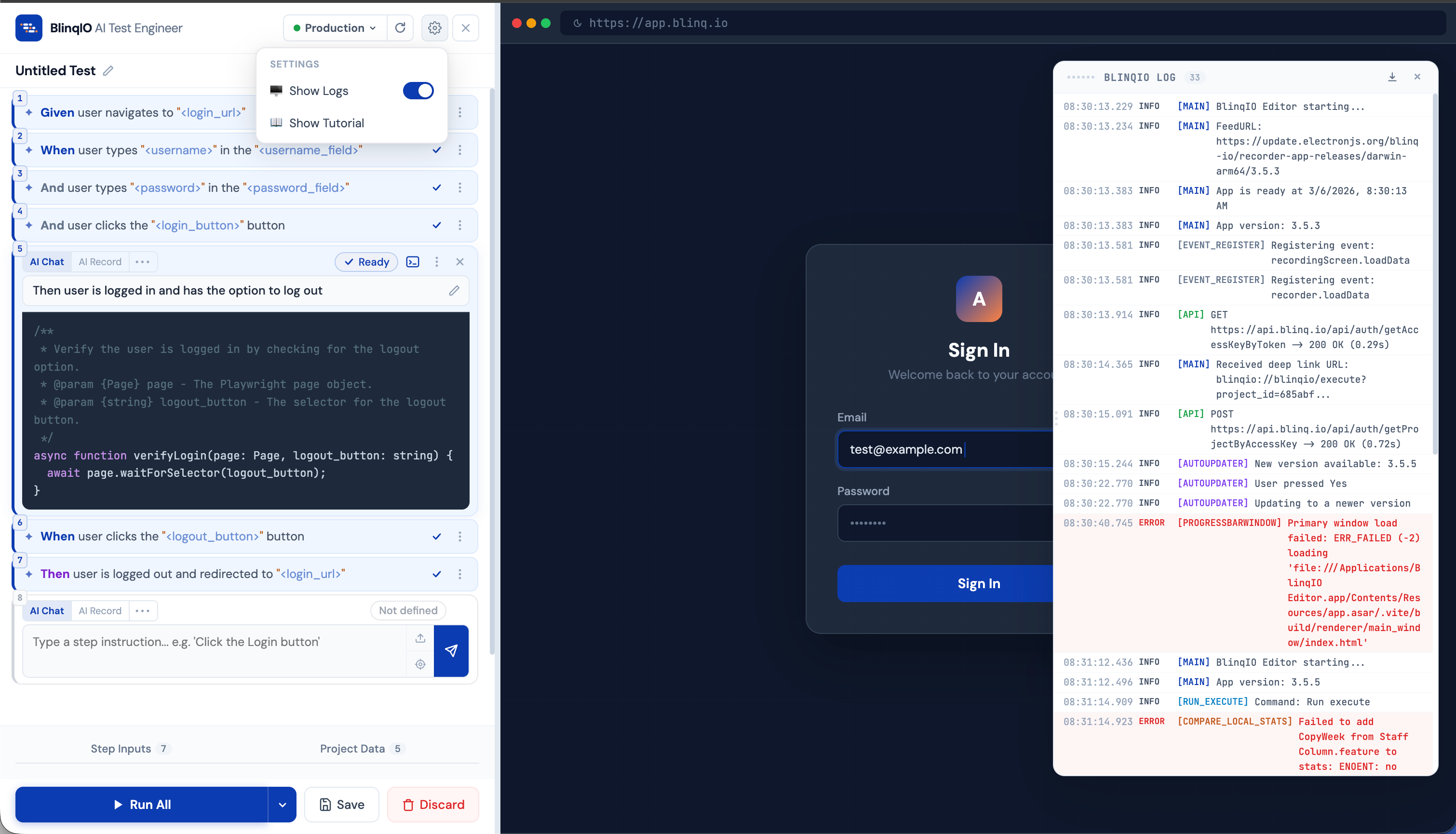
The AI Test Engineer is the authoring environment where you build, run, and refine individual tests. It uses a split-screen layout with your test steps on the left and a live browser preview on the right, with test data controls at the bottom.
Header
The header bar contains:
- Environment selector: Shows your current test URL. Click to switch environments or manage URLs.
- Refresh: Reloads the browser preview (with confirmation).
- Help (?): Replays the onboarding tutorial.
- Settings gear: Toggle options like log visibility.

Test name
Click the test name to rename your test. It defaults to "Untitled Test".
Step list
The core of the editor is the vertical list of steps. Click any step to expand it for editing. Completed steps show a compact summary with the step name and status. 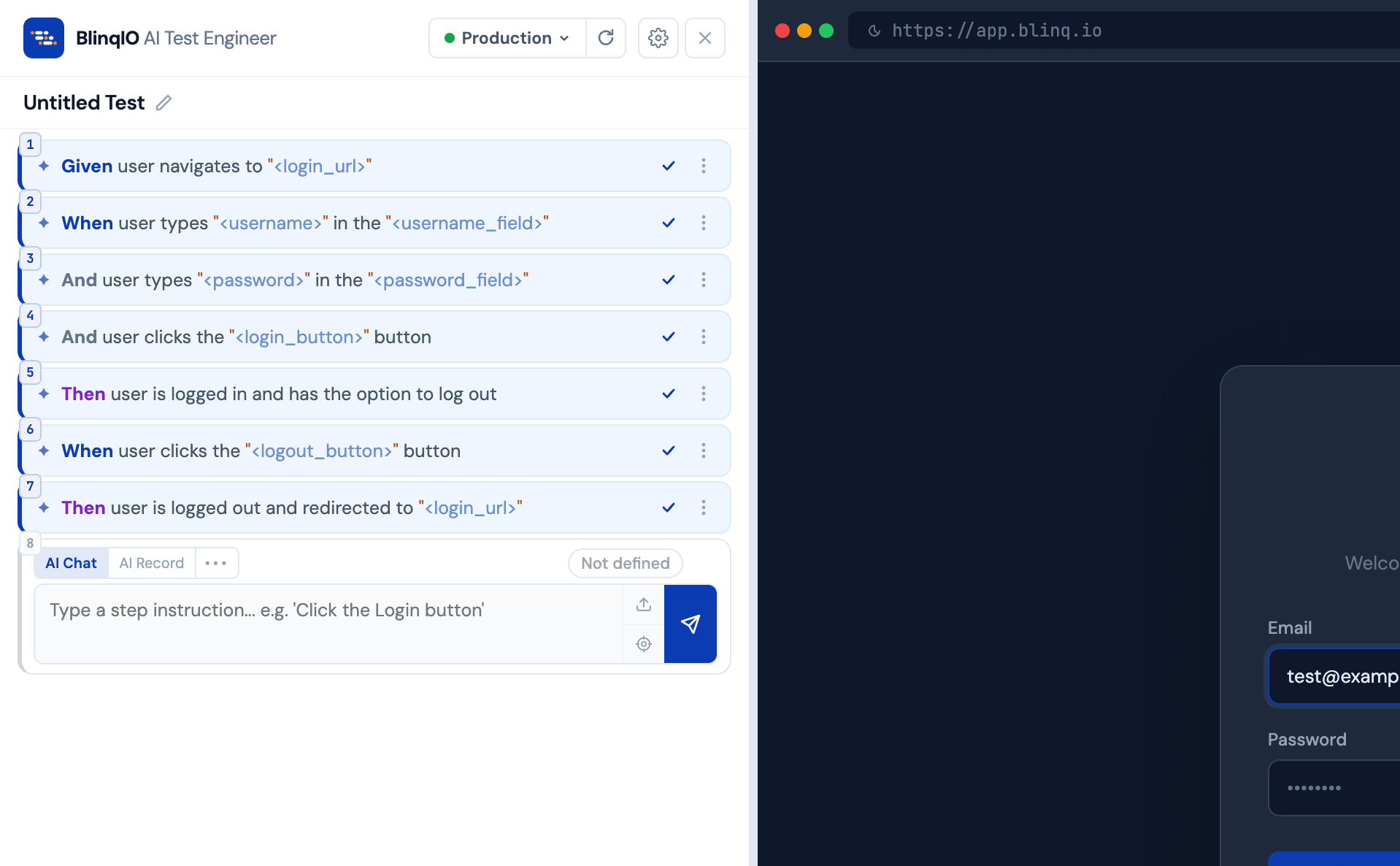
Step context menu
Right-click any step (or click its three-dot menu) to access:
| Action | Description |
|---|---|
| Add step above | Insert a new empty step above the current one |
| Add step below | Insert a new empty step below |
| Rename | Open a structured rename editor (locked keyword + editable description) |
| Delete step | Remove the step (disabled if it's the only step) |
Actions are disabled during runs. Steps without a name have Add/Rename disabled. 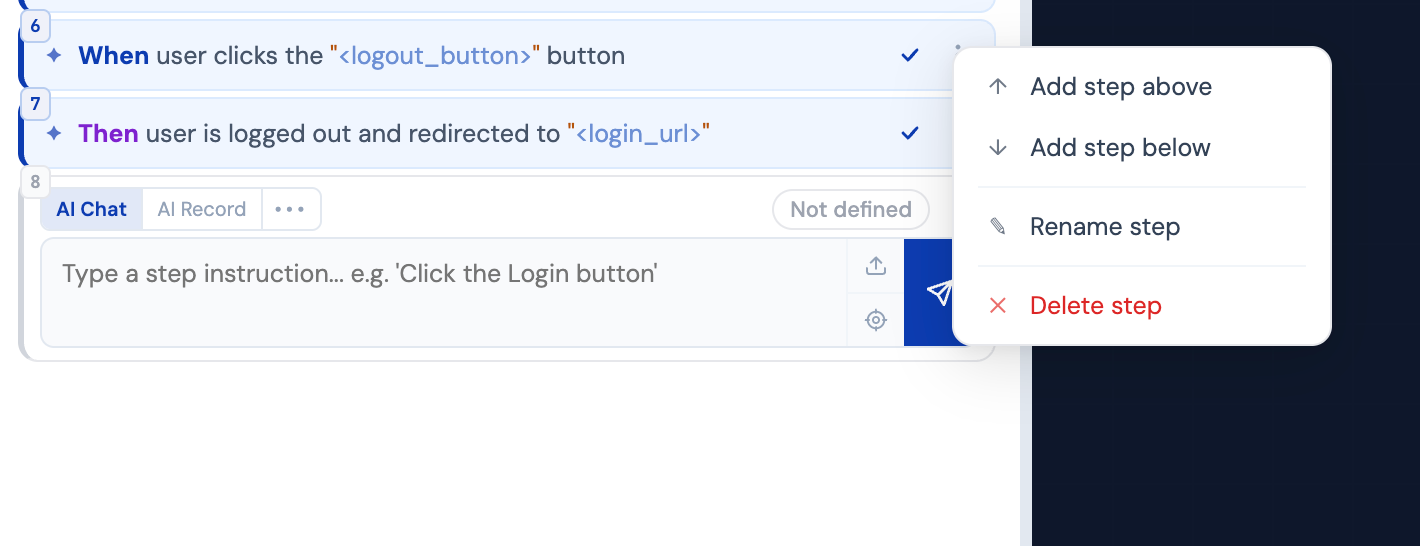
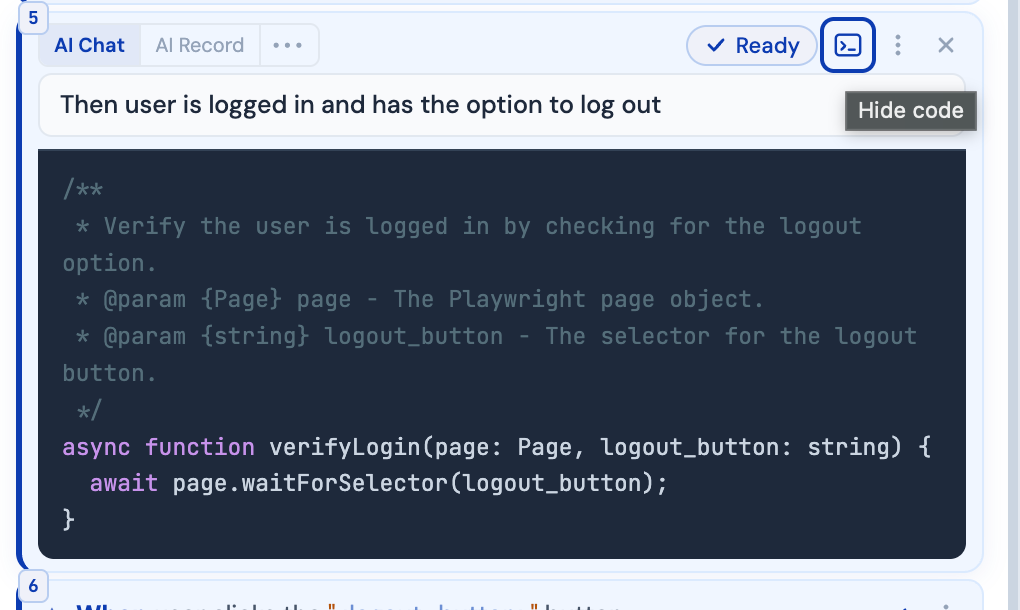
Code viewer
Each step has a code viewer toggle. Expanding it shows the generated Playwright code with syntax highlighting.
Log panel
An optional log viewer (enabled via Settings > Show Logs) displays execution logs. It can be moved, resized, and its contents downloaded as a text file.
What's next
- Step Modes: Deep dive into AI Chat, AI Record, Assert, Reuse, and Custom
- Running Tests: Execute, pause, and validate
- Test Data & Parameters: Manage dynamic values
- Saving & Discarding: Save flow with guardrails