
Organizing Tests
BlinqIO provides multiple ways to organize, find, and manage your tests: folders, features, tags, and search.
Folder hierarchy
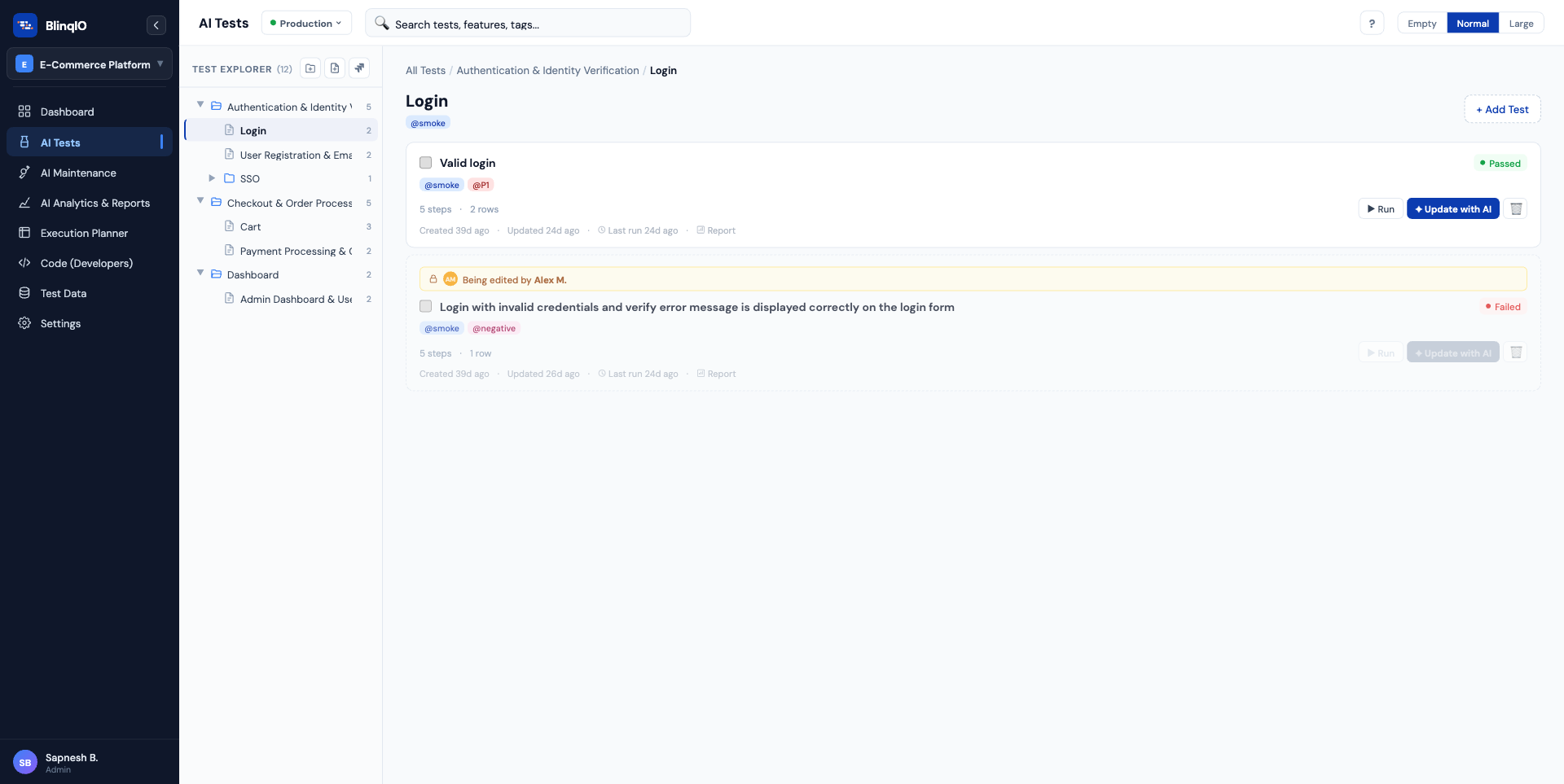
Tests are organized in a tree structure:
Folder → Feature → Test (Scenario)Folders are pure organizational containers. They can be nested for deeper hierarchy (e.g., E-Commerce / Checkout / Guest Checkout).
Features live inside folders and group related tests. Each feature maps to a Gherkin Feature file and contains one or more tests.
Creating folders and features
From the Test Explorer header:
- Click the folder icon to create a new folder
- Click the feature icon to create a new feature
Or right-click any item in the folder tree for a context menu with:
- New Folder: Create a subfolder
- New Feature: Create a feature inside the folder
- Rename: Change the name
- Delete: Remove the item and its contents
Drag-and-drop reorganization
Drag folders and features to reorder or move them within the tree. The tree updates in real-time as you reorganize.
Tags
Tags are color-coded labels you can attach to tests for cross-cutting categorization. Unlike folders (which impose a single hierarchy), tags allow flexible grouping across boundaries.
Common tag strategies
| Strategy | Example tags |
|---|---|
| Priority | critical, high, low |
| Type | smoke, regression, e2e |
| Feature area | auth, payments, search |
| Status | flaky, needs-review, blocked |
Managing tags
On a test card or in the detail panel:
- Click the tag area to open the tag editor
- Type a tag name and press Enter to add
- Click the X on a tag to remove it
- Tags are color-coded automatically
Search
The search bar at the top of the test list filters across:
- Test names: Matches anywhere in the name
- Tag names: Find all tests with a specific tag
- Feature names: Filter by the parent feature
Search results update in real-time as you type, spanning all folders and features in the current project.
Bulk actions
For batch operations:
- Select multiple tests using the checkboxes on test cards
- The Bulk Action Bar appears with available operations:
- Run selected: Execute all selected tests
- Delete selected: Remove all selected tests (with confirmation)
What's next
- AI Test Engineer Overview: Build and edit tests
- Projects & Environments: Manage workspaces and URLs