
Configuring AI Settings in BlinqIO
The AI Settings tab in BlinqIO is a powerful command center that allows you to customize the behavior of the AI Recorder and the Test Execution engine. By modifying the configuration JSON, you can control everything from browser dimensions and timeouts to complex environment variables like geolocation and local storage.
How to Modify AI Settings
BlinqIO provides an integrated JSON editor with built-in validation to ensure your configurations are syntactically correct.
Navigate to Settings in the left-hand sidebar ans select the AI Settings tab.
Click the Edit Settings button in the top right.
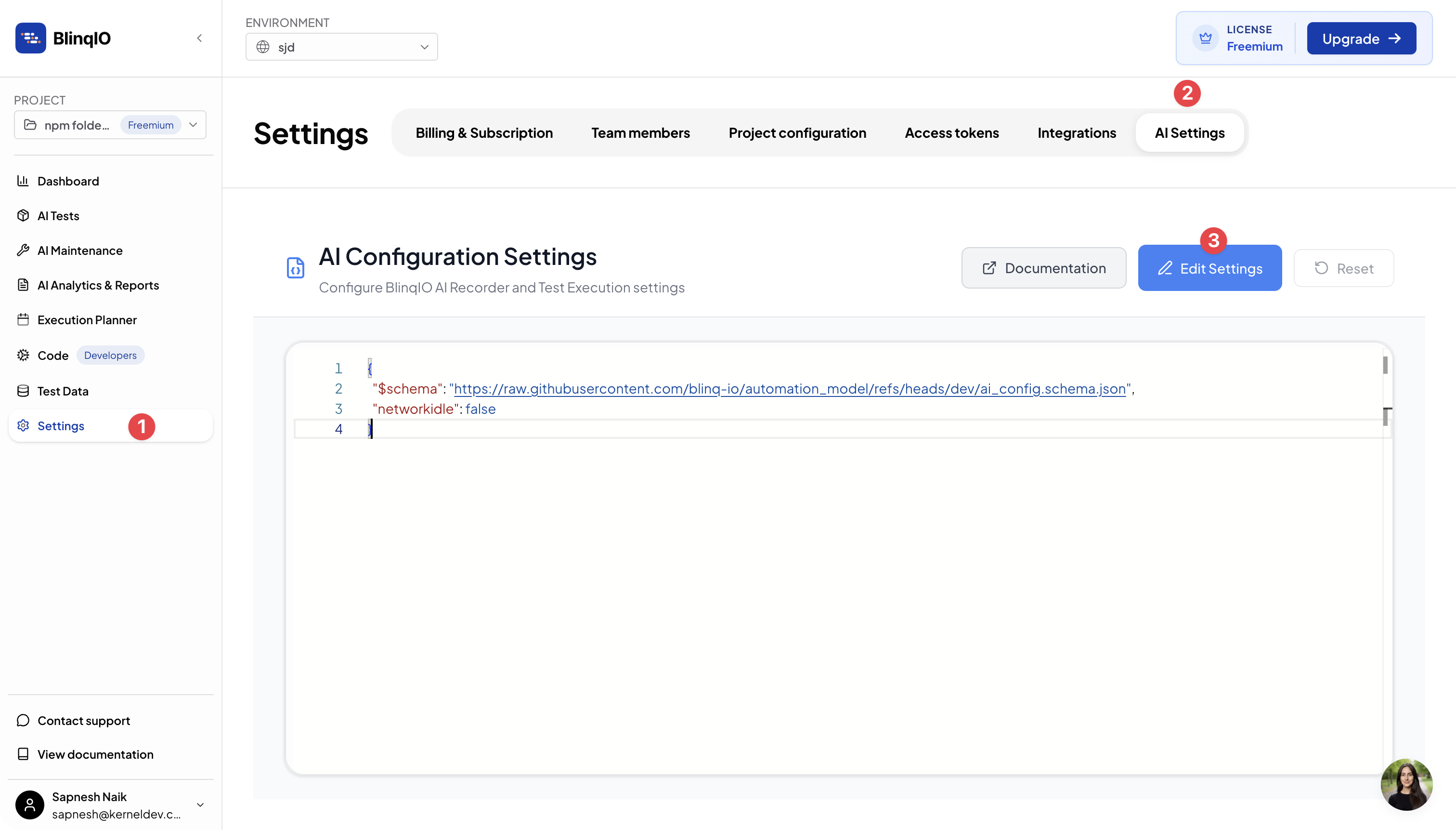
To add a new key: Place your cursor after an existing value, add a comma (,), and press Enter.
TIP
Use Autocomplete: Start typing a property name (e.g.,
"view...") to see a list of available keys. Selecting a key from the autocomplete list will often provide a sample value (e.g., latitude/longitude for geolocation) that you can then modify.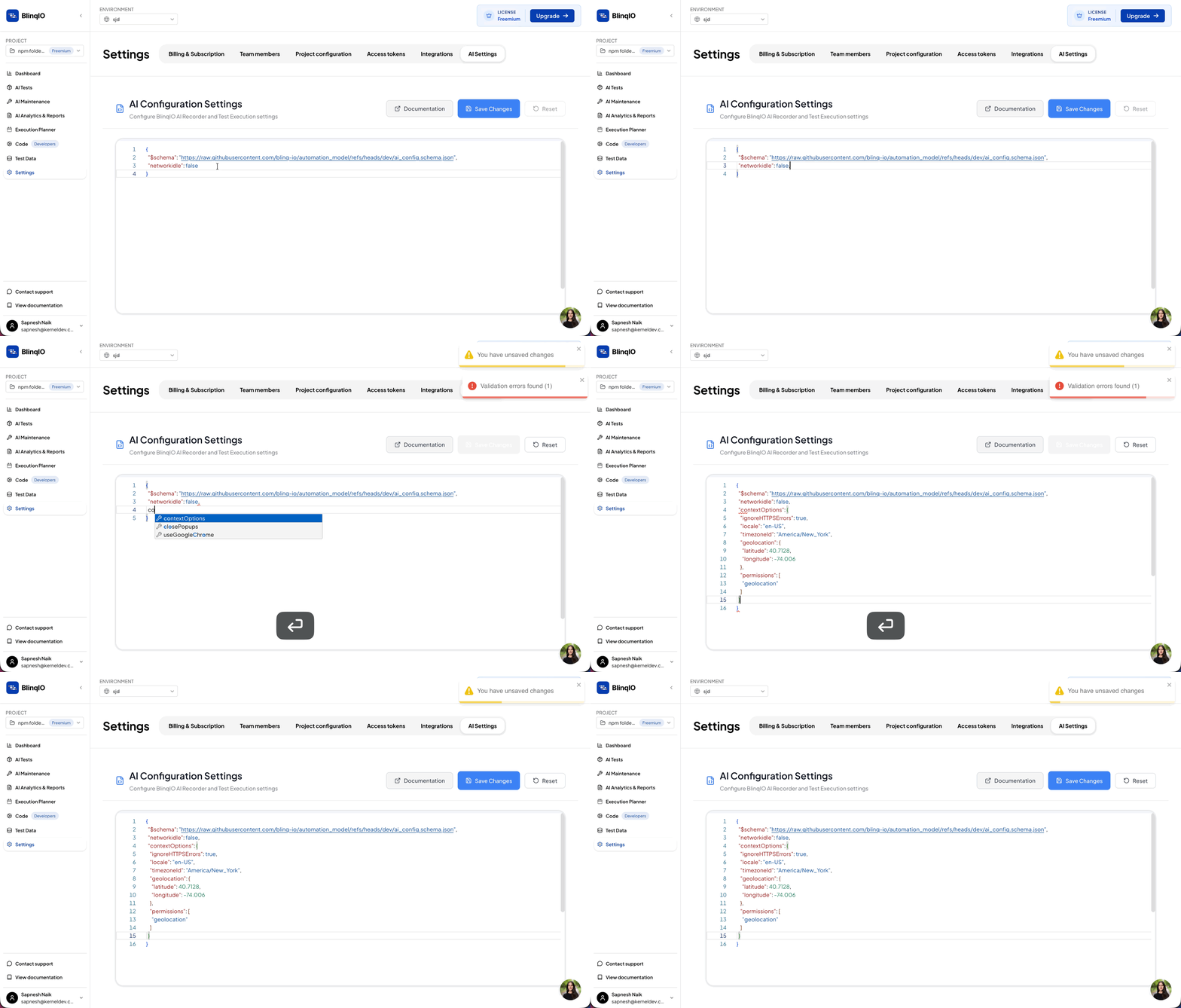
Click Save.
The editor validates your input against a predefined schema. If there are syntax errors or invalid data types, the save will fail with an error message indicating the location of the issue.
Configuration Reference
Below are the available configuration keys, categorized by their impact on the testing environment.
1. Viewport & Browser Appearance
| Key | Type | Description |
|---|---|---|
viewport | Object | Sets the specific width and height of the browser window (e.g., { "width": 1200, "height": 800 }).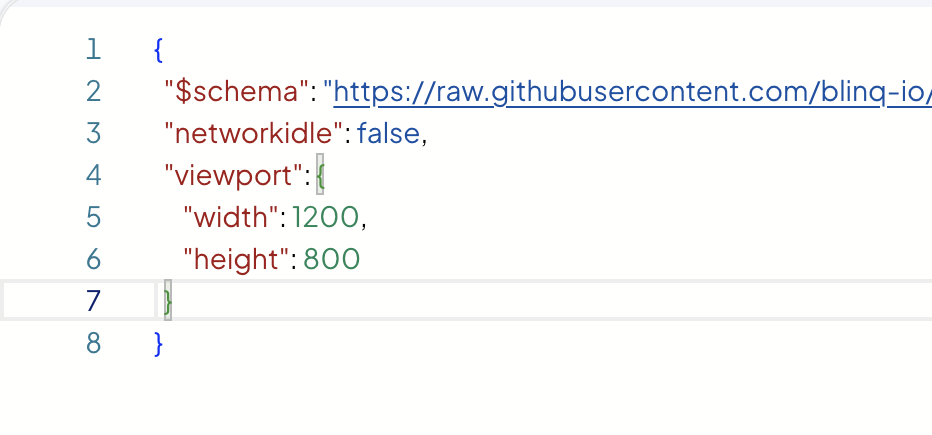 |
noViewport | Boolean | If true, the host OS decides the size. Note: This can lead to inconsistent test results across different machines. |
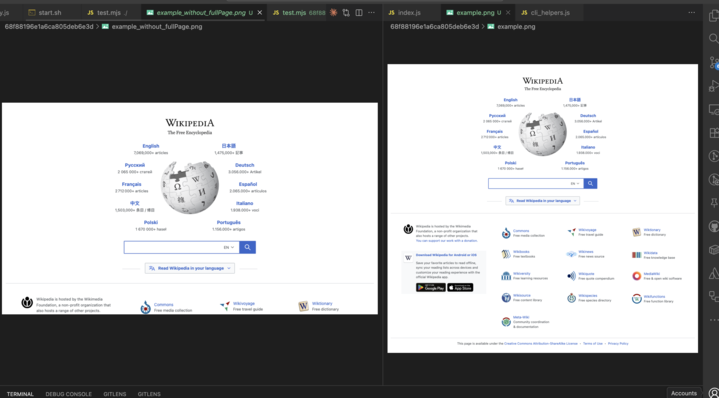
fullPageScreenshotOnFailure | Boolean | When true, BlinqIO captures a screenshot of the entire scrollable page (not just the visible area) upon a test failure. |
load_all_lazy | Boolean | If true, the runner scrolls through the entire page automatically to trigger the loading of "lazy-loaded" elements. |
2. Browser Engine Selection
By default, tests run on a bundled Chromium browser. Use these keys to override that behavior:
useGoogleChrome: Set totrueto use the official Google Chrome installation on the host machine.useMicrosoftEdge: Set totrueto use Microsoft Edge.overrideUserAgent: (String) Allows you to spoof the browser's User Agent string (useful for testing device-specific content).
3. Execution & Performance
fastMode: (Boolean) Speeds up execution. Use with caution, as steps may fail if the application under test requires significant time to render.page_timeout: (Number) The maximum time (in milliseconds) to wait for a page to load completely.find_element_timeout: (Number) The maximum time the AI will search for an element before timing out.stableLocatorStrategy: (String) Define your preferred strategy for identifying elements during runtime (e.g., prioritisingdata-testidover CSS).
4. Handling Dialogs & Popups
| Key | Type | Description |
|---|---|---|
acceptDialog | Boolean | Automatically clicks "OK" or "Accept" on native browser alerts and dialogs. |
closePopups | Boolean | Automatically attempts to close unexpected popups that appear during execution. |
popupHandlers | Array | Provides specific locators for the AI to identify and close specific application popups. |
5. Network & Synchronization
These settings control when the AI should "proceed" to the next action:
networkidle: Wait until there are no more active network requests for at least 500ms.load: Wait for the standardloadevent.domcontentloaded: Wait for the HTML to be fully loaded and parsed.
Advanced Context & Playwright Integration
BlinqIO leverages Playwright for browser orchestration. You can pass advanced options directly to the browser context.
contextOptions
This object maps directly to the Playwright Browser Context API. You can use this to simulate specific user environments:
JSON
"contextOptions": {
  "ignoreHTTPSErrors": true,
  "locale": "en-GB",
  "timezoneId": "Europe/London",
  "geolocation": {
    "latitude": 51.5074,
    "longitude": -0.1278
  },
    "permissions": [
      "geolocation",
      "microphone",
      "camera"
    ]
}
browserOptions (Tag-Based Overrides)
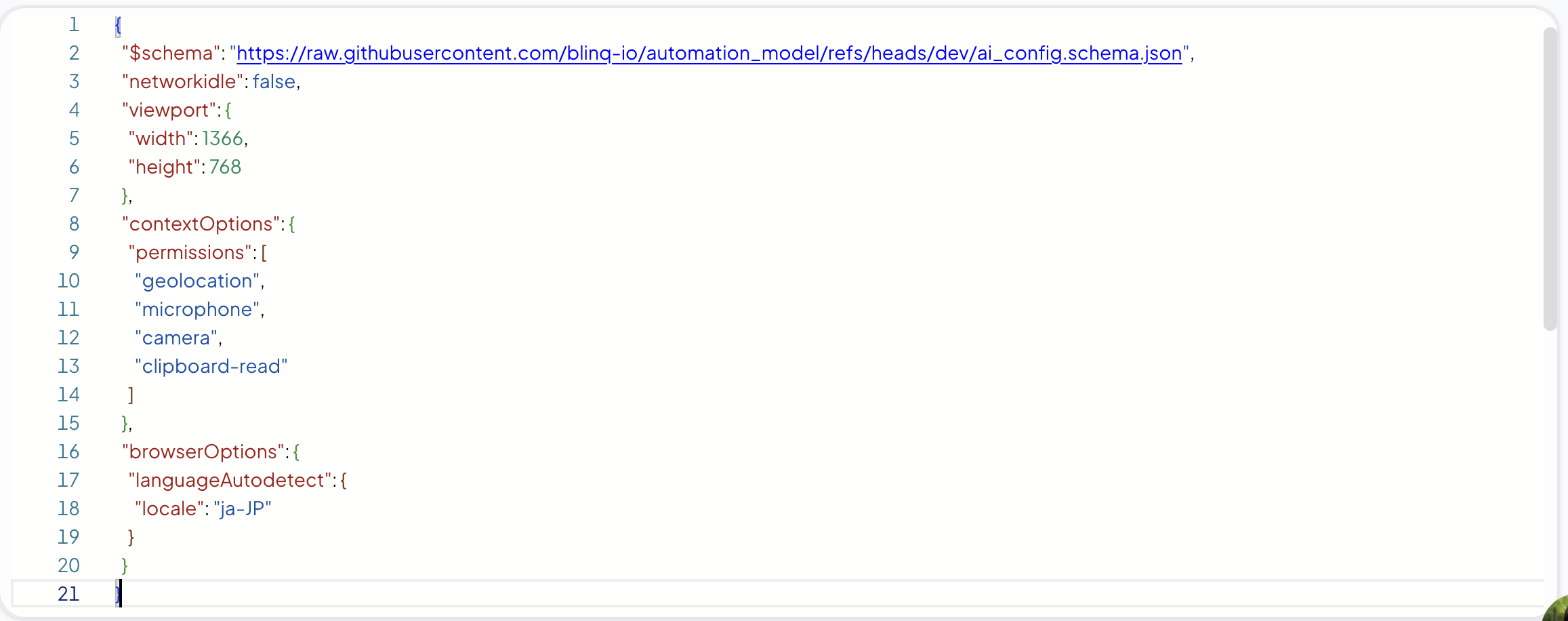
This allows you to create specific configurations that are only triggered by Gherkin tags. If a scenario is tagged with @browserOptions__<key>, the corresponding settings here will override the defaults.
json
  "browserOptions": {
    "languageAutodetect": {
      "locale": "ja-JP"
    }
Example:
To run a specific test in mobile emulation, define a mobile key in browserOptions and tag your Gherkin scenario with @browserOptions__mobile.
Skip Run Reports for Tests
Set UPLOADREPORTS=false in ai_config to skip running reports for your tests. You can also add it per execution as an environment variable:
npx cross-env BLINQ_ENV="environments/shop-blinq.json" UPLOADREPORT=FALSE TOKEN=xyz BVT_FORMATTER="ANALYSIS" FAST_MODE=false cucumber-js "features/LoginAndProductVerification.feature"...Capture Full Page Screenshot on Failure
Set fullPageScreenshotOnFailure=true to capture full page screenshots on failure.
Recorder Browser Load Wait Timeout
After the launch, the AI Recorder waits for a maximum of 60 seconds by default for your web application to load. It then errors out if the application hasn't loaded yet.
You can increase this timeout by setting the setting page_timeout key in ai_config.json.
setting page_timeout : time in milliseconds
json
{
	setting page_timeout : 90000
}