
Step Modes
Every step in BlinqIO can be created using one of five modes. The two primary modes, AI Chat and AI Record, are always visible. Three secondary modes (Assert, Reuse, Custom) expand from a ... indicator on hover.
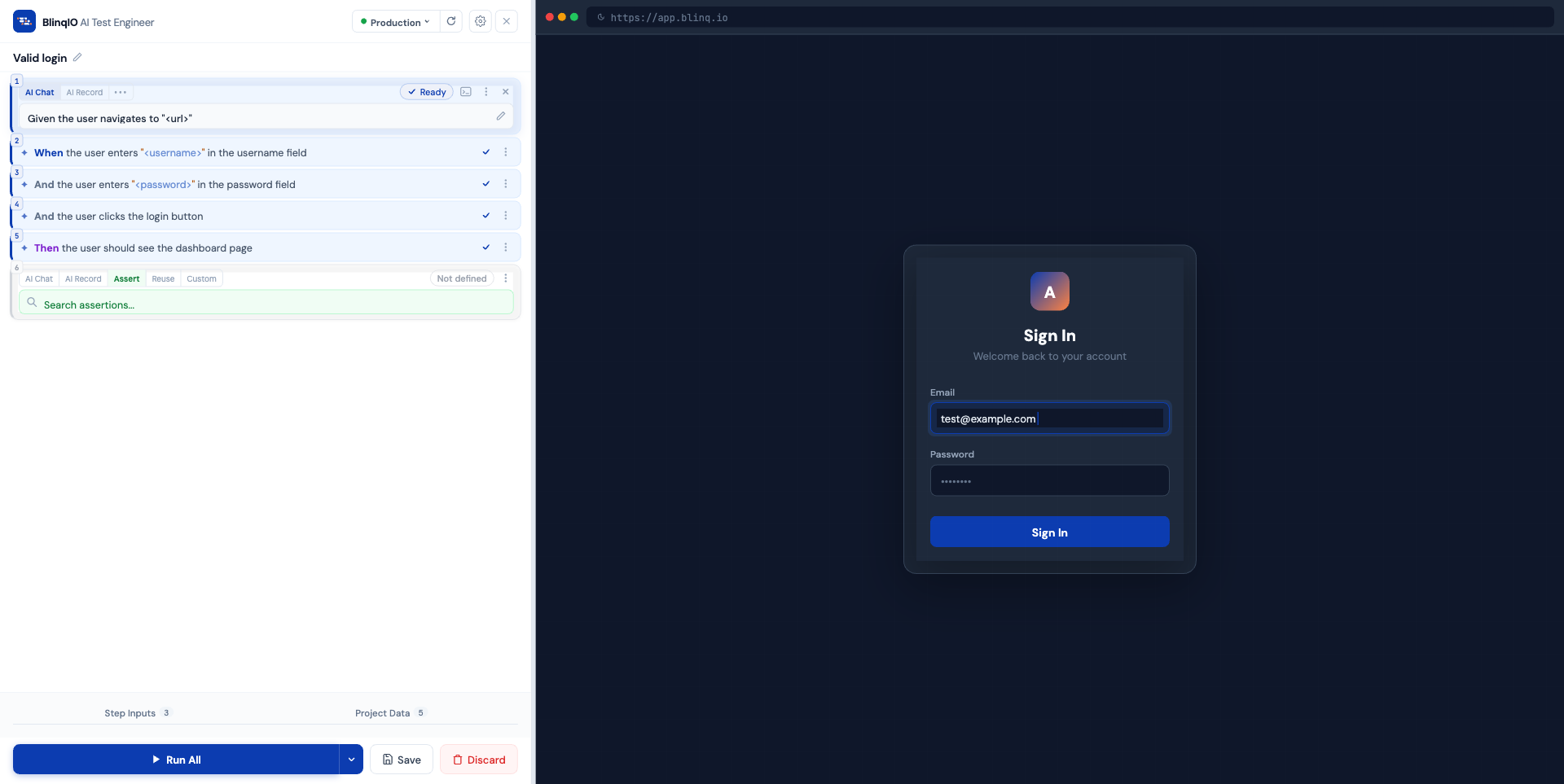
AI Chat
The default mode. Describe what the step should do in plain English, and AI generates the Gherkin step name and Playwright code.
How to use
- Ensure AI Chat mode is selected (sparkle icon)
- Type your instruction in the input field:
Click the "Add to Cart" button for the first product - Press Enter or click the Send button
- The step enters a processing phase with cycling status messages:
- "Analyzing instruction..."
- "Generating Playwright code..."
- "Optimizing selectors..."
- AI generates:
- A properly formatted Gherkin step name with keyword semantics (Given/When/Then/And/But)
- Parameterized step names using
<param>syntax where appropriate - Playwright TypeScript code
- An examples object mapping parameters to values
Auto-splitting
If your instruction describes multiple logical actions, the AI automatically splits it into separate steps. For example:
Input: "Fill in the registration form with name John, email john@test.com, and click Submit"
Output:
- Step 1:
When user enters "<name>" in the name field - Step 2:
And user enters "<email>" in the email field - Step 3:
And user clicks the "Submit" button
Split steps are inserted immediately after the original step's position. You'll see a notification: "AI split your actions into 3 steps".
Document upload
The paperclip button in the AI Chat input allows uploading PDF, DOC, TXT, or MD files as additional context for AI step generation. This is useful when you have specifications or user stories to reference.
AI Record
Record browser interactions and let AI generate the step code automatically.
How to use
- Switch to AI Record mode (record icon)
- The input becomes non-editable and the browser preview enters recording mode:
- A blinking orange REC indicator appears in the browser bar
- The left border of the step turns orange
- Interact with the browser preview: clicks are captured as recorded actions
- Each action appears in a live feed within the step card
- Click Stop to end recording
- AI analyzes the recorded actions and generates:
- A descriptive step name based on what was recorded
- Playwright code for each captured action
Recorded action context menu
Right-click any captured action (or click its dots button) for options:
| Action | Description |
|---|---|
| Switch locator strategy | Change the element locator used |
| Convert to double click | Change a single click to double click |
| Convert to right click | Change a single click to right click |
| Parameterize value | Extract the value into a reusable <param> |
| Add wait before action | Insert a delay before this action |
| Delete action | Remove the recorded action |
Auto-splitting in recording
Like AI Chat, recording mode can auto-split actions into multiple steps when they represent separate logical operations (e.g., filling a form then clicking submit).
Re-recording
After completing a recording, a Re-record button lets you start over for that step.
Assert
Add verification checks to validate that your application is in the expected state.
Assertion types
Select from a searchable dropdown (green-themed):
| Type | What it checks |
|---|---|
| Verify text found | Specific text exists on the page |
| Verify text not found | Specific text does not exist |
| Verify element property | An element's attribute or CSS property |
| Verify page title | The page's <title> tag |
| Verify page URL | The current URL or path |
| Verify page snapshot | Visual comparison of the page state |
| Verify text relation | Text exists in relation to other text (e.g., "Price" near "$29.99") |
Reuse
Select a step from your existing step library to reuse in the current test.
How to use
- Switch to Reuse mode (reuse icon)
- A searchable dropdown appears listing all available steps
- Use fuzzy search to find the step you need
- Select a step to reuse it: BlinqIO will also attempt to execute it in the browser
This promotes consistency and reduces duplication across your test suite.
Custom
Specialized actions that don't fit the AI Chat or Record paradigm.
Available custom actions
| Action | Description |
|---|---|
| Context Click | Perform a right-click on an element |
| Extract Value | Capture a value from an element for use in later steps |
| Fixed Sleep | Wait a specific number of seconds |
| Fluent Sleep | Wait dynamically until a condition is met |
Select the action type from a searchable dropdown.
Switching modes
You can change a step's mode at any time:
- Empty steps switch instantly
- Defined steps (with existing code) trigger a confirmation modal warning that the current implementation will be lost
This flexibility means you can start with AI Chat, realize recording would be easier, and switch mid-step.
What's next
- Running Tests: Execute your steps and see statuses in action
- Test Data & Parameters: Work with dynamic values