
Browser Preview
The right panel of the AI Test Engineer shows a live browser preview of your target application. It provides the visual context for recording actions, running tests, and verifying results.
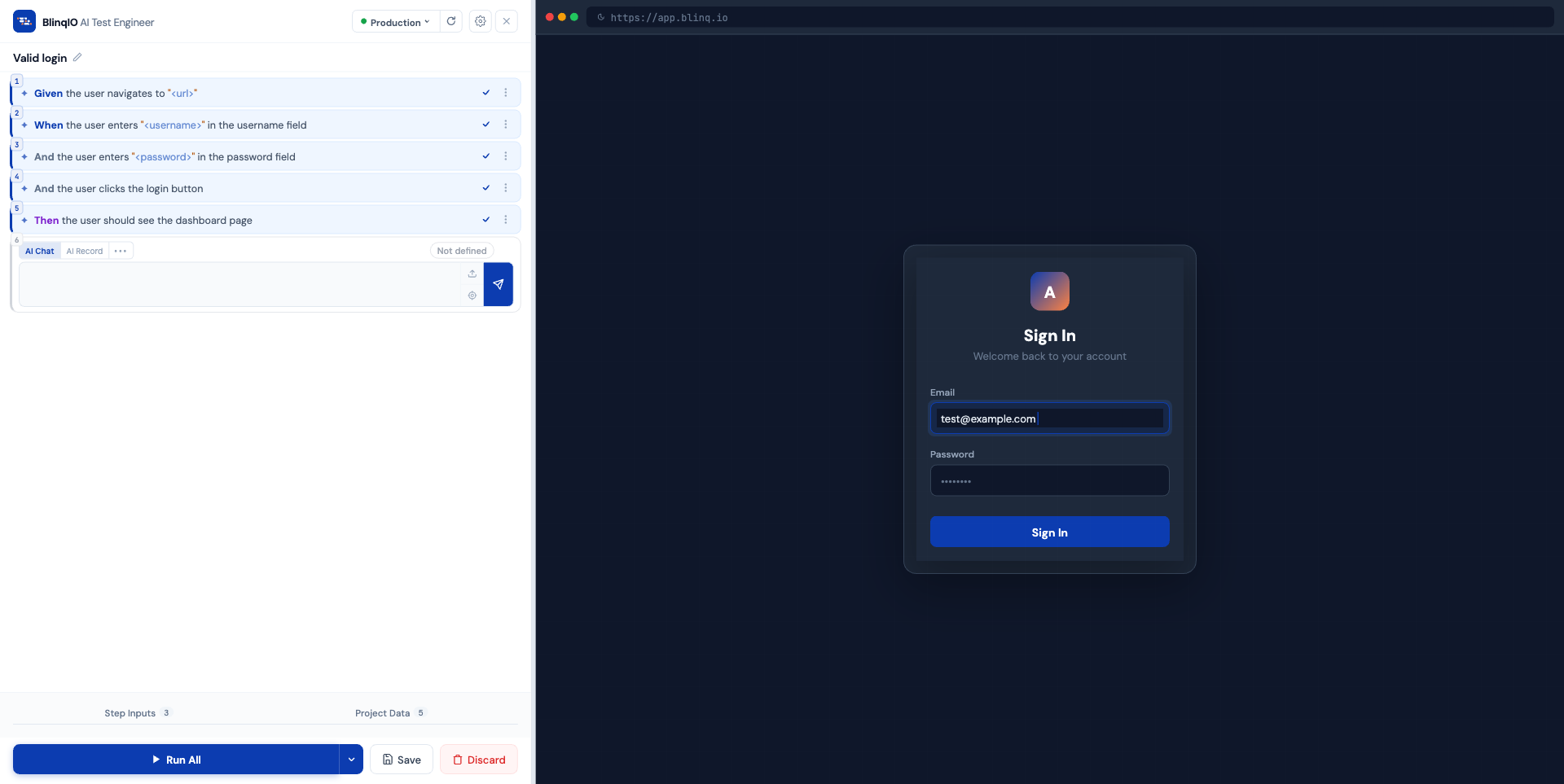
Browser chrome
The preview displays your application with a URL bar showing the current environment. Visual indicators appear for active recording (orange REC badge) and element picker (blue crosshair badge) modes.
Interaction modes
The browser preview responds differently depending on the active step's mode:
Recording mode
When a step is in AI Record mode:
- The orange REC indicator blinks in the browser bar
- Clicking anywhere in the browser captures the action
- Each captured action includes element metadata (selectors, text, attributes)
- A live feed of recorded actions appears in the step card
Element picker mode
When the element picker is active:
- The blue crosshair PICK ELEMENT indicator appears
- Hovering over elements highlights them
- Clicking selects an element and provides its selector to the AI
Running mode
During test execution:
- The browser shows real-time updates as each step executes
- Navigation, clicks, and text input are reflected visually
- On failure, the browser shows the state at the point of failure
Default mode
When no special mode is active, the browser shows the mock application content (a centered login form with a grid background) at the current environment's URL.
Panel resizing
Drag the divider between the step editor and browser preview to adjust the layout to your preference.
What's next
- Step Modes: AI Record mode in detail
- Running Tests: How the browser updates during execution
- AI Test Engineer Overview: Full editor layout reference