
Test Data & Parameters
BlinqIO automatically extracts parameters from your test steps and provides tools to manage dynamic test data.
The Test Data panel
The Test Data panel is a collapsible section at the bottom of the left panel in the editor. It has two tabs:
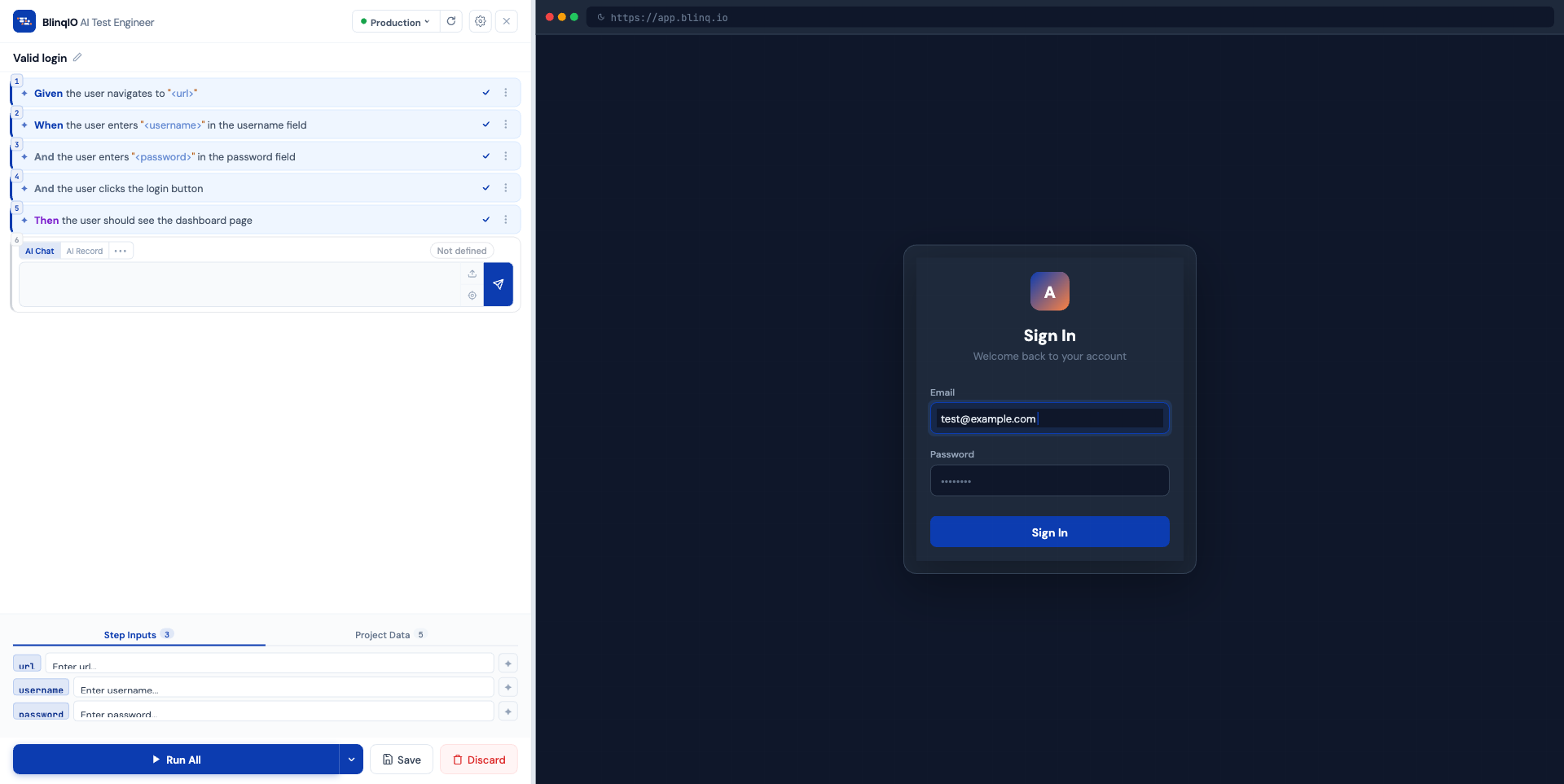
Step Inputs tab
Displays all parameters extracted from your step names as editable key-value pairs.
How parameters work:
When AI generates a step name like:
When user enters "<username>" in the email field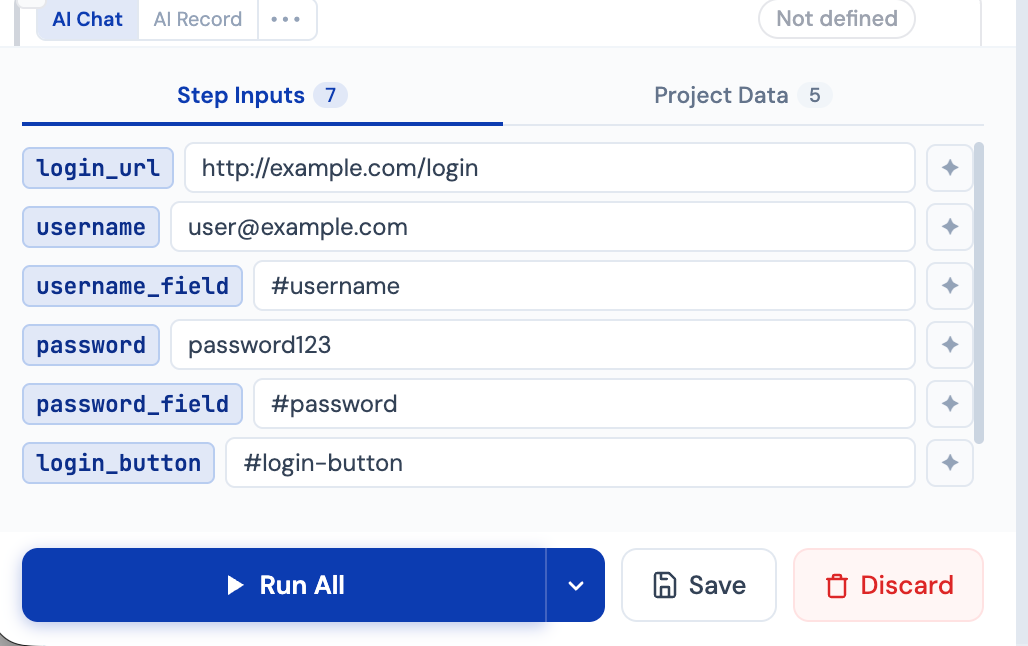
The <username> token is automatically extracted and appears in the Step Inputs tab as an editable row:
| Parameter | Value |
|---|---|
| username | admin |
| password | secret123 |
Editing parameter keys
Click a parameter name to rename it. Renaming updates all step names that reference it, and the matching parameters are highlighted.
Editing parameter values
Click a value to edit inline. Changing a value triggers a "run recommended" warning since the test needs re-validation.
Project Data tab
Displays a read-only JSON key-value viewer showing project-level settings:
baseUrl: The application URLpassword: Stored credentialsenv: Environment settingsapiToken: API access tokentimeout: Default timeout values
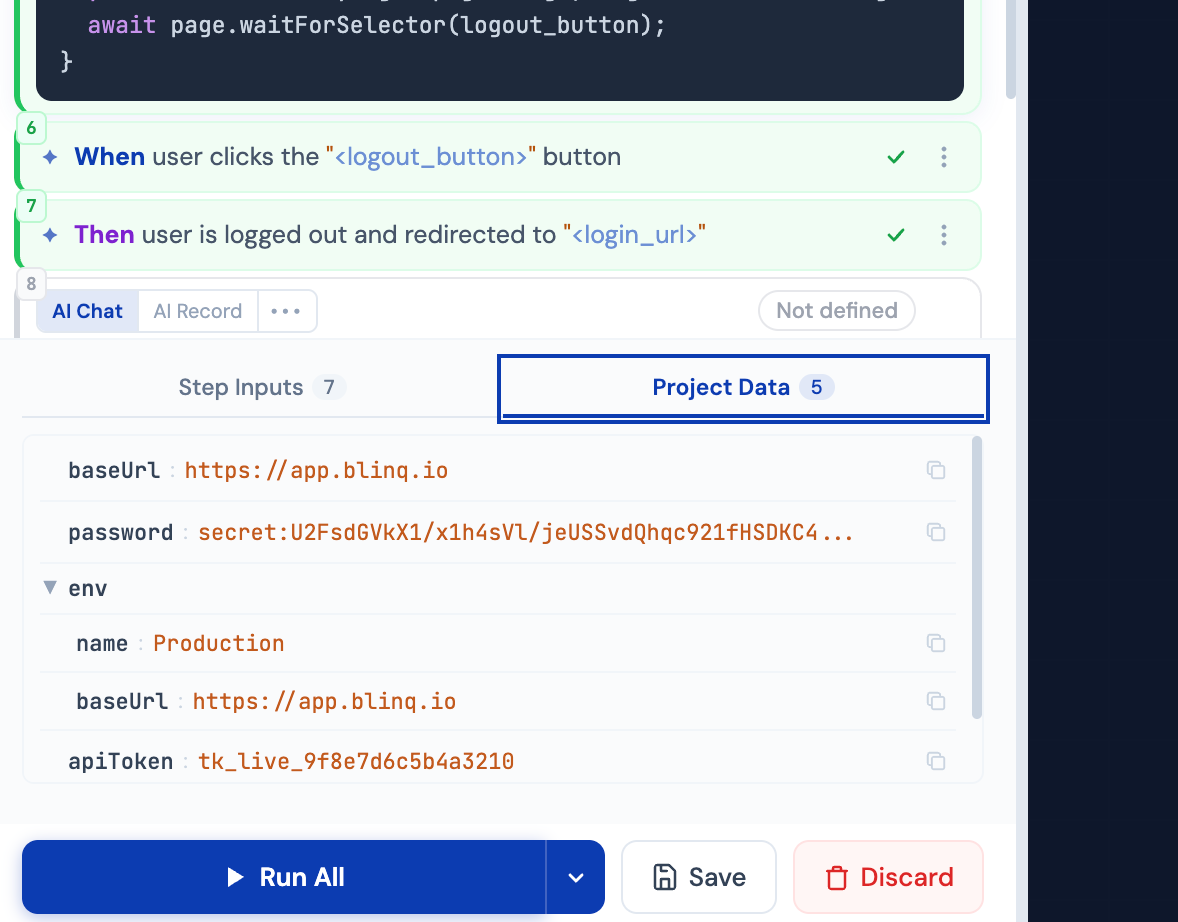
Each value has a copy-to-clipboard button.
AI Enhance
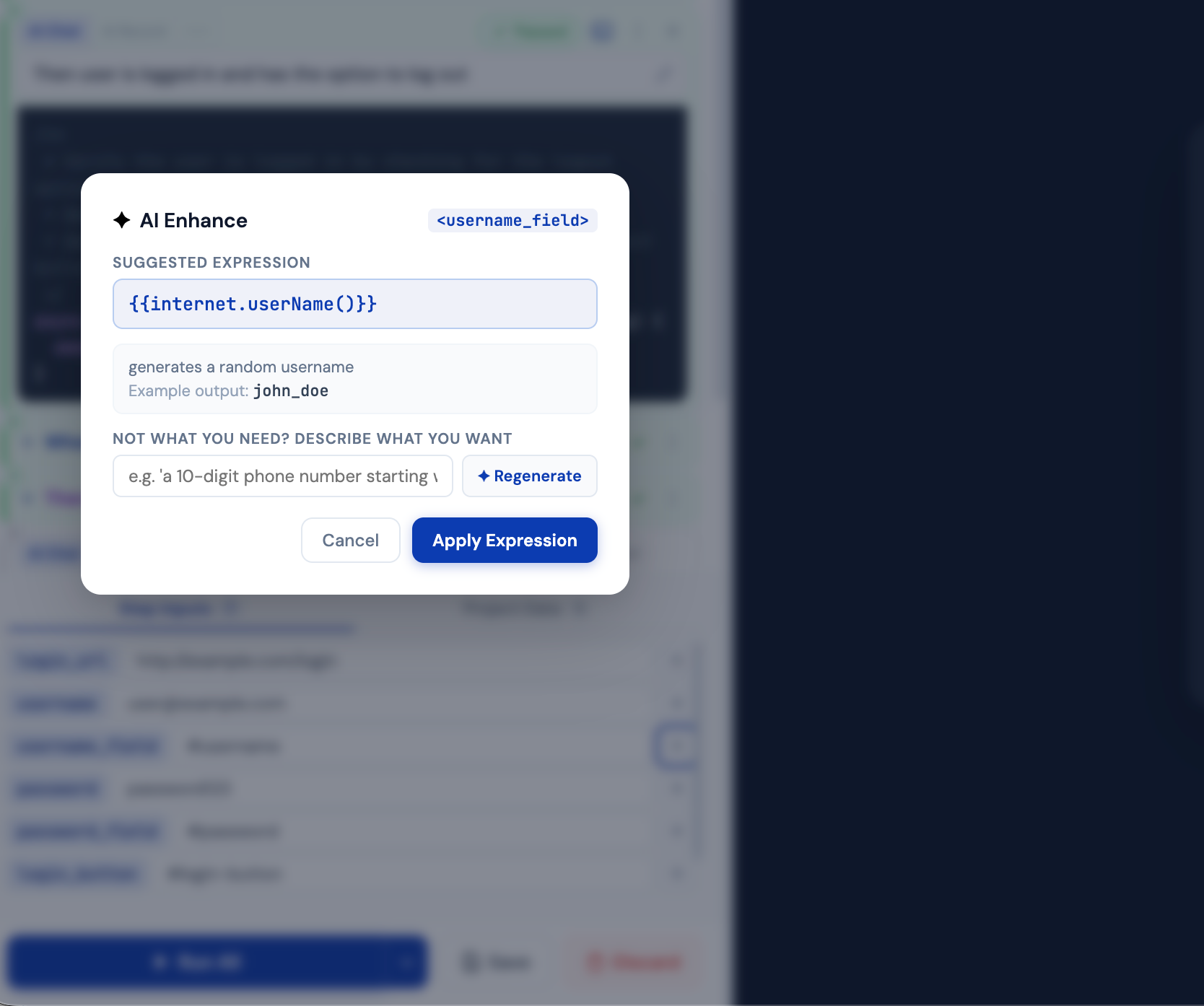
When AI Enhance is available for a parameter, the sparkle icon opens a modal that can suggest supported dynamic expressions instead of static values. You can also type these expressions directly without using AI Enhance.
Expression types
| Type | Example | Use case |
|---|---|---|
| Faker | {{faker:internet.email}} | Generate realistic random data |
| JavaScript | ${Math.floor(Math.random() * 1000)} | Compute numeric values dynamically |
| Date expressions | {{date:today + 7 days}} | Date arithmetic |
| Combinations | {{faker:helpers.fake("{{person.firstName}}.{{person.lastName}}@example.com")}} | Build a full string from multiple generators |
How to use
- Click the sparkle icon next to a parameter value
- The AI Enhance modal opens showing the current value
- Choose to:
- Accept the AI-generated expression
- Regenerate for a different suggestion
- Custom prompt to describe what kind of value you need
Supported expressions include:
{{faker:person.firstName}}{{faker:person.lastName}}{{faker:internet.email}}${Math.floor(Math.random() * (65 - 55 + 1)) + 55}{{date:today + 7 days}}
Parameter highlighting
BlinqIO highlights matching parameters across your steps when you edit keys or values, making it easy to see how changes affect your test.
What's next
- Saving & Discarding: Save your test with its data
- Step Modes: How parameters are created during step authoring
- Running Tests: Execute with different parameter values