
Saving & Discarding Tests
BlinqIO includes guardrails in the save flow to help you avoid saving untested or unnamed tests.
Save flow
When you click Save, BlinqIO runs through a series of checks:
Click Save
  ↓
Test name is "Untitled Test"? → Name Prompt Modal
  ↓
Any defined step NOT in "passed" status? → Run Recommendation Modal
  ↓
All checks pass → Test is saved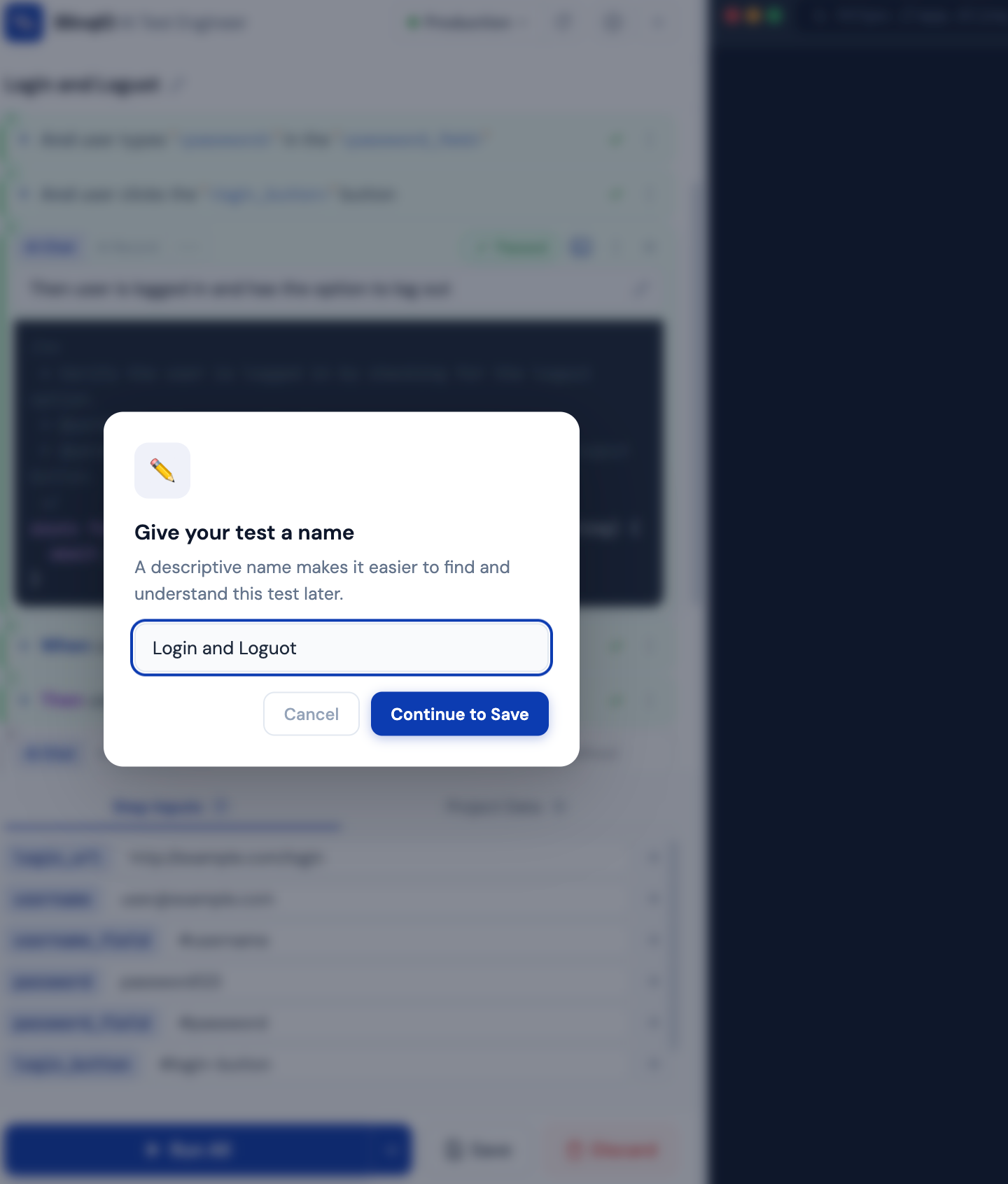
Name prompt
If the test is still named "Untitled Test," a modal asks you to provide a name.
- AI auto-suggestion: BlinqIO automatically generates a descriptive name based on your test's Gherkin steps and parameter values
- The suggestion pre-fills the input field while loading
- You can accept it as-is, edit it, or clear it and type your own name
Run recommendation
If any defined step hasn't passed (status is "ready," "failed," or "empty"), a warning modal appears:
"Un-run tests are the #1 cause of false confidence in test suites."
You have two options:
- Run All First: Execute the test to validate before saving
- Save Anyway: Save without validation (not recommended)
Successful save
When saved:
- A green success toast confirms the save
- The test appears in the folder tree under the appropriate feature
- Test metadata (timestamps, step count) updates
Discard
Clicking Discard opens a confirmation modal:
"Discard this test? This action cannot be undone."
Confirming resets:
- All steps are cleared to a single empty Given step
- The test name reverts to "Untitled Test"
- All parameter values are cleared
- The browser preview is unaffected
Drag-and-drop reorder considerations
When you reorder steps via drag-and-drop, a confirmation modal offers three options:
| Option | Behavior |
|---|---|
| Cancel | Undo the drag |
| Move Step | Reorder and revert the moved step to "Ready" status |
| Move & Run Test | Reorder then immediately run all steps end-to-end |
Moved steps revert to "Ready" because the new position means the end-to-end flow hasn't been validated with this ordering. This triggers the run recommendation on the next save attempt.
Toast notifications
BlinqIO shows notifications to keep you informed:
| Type | When it appears |
|---|---|
| Success (green) | Test saved, all steps passed |
| Warning (amber) | Step reorder, parameter value change |
| Info (blue) | AI splits instruction into multiple steps |
| Error (red) | Step fails during run |
Notifications auto-dismiss and can be manually closed.
What's next
- AI Tests Overview: View your saved tests
- Running Tests: Validate before saving
- Test Data & Parameters: Manage parameters before save