Skip to content

Launch AI Recorder Directly in Your Browser
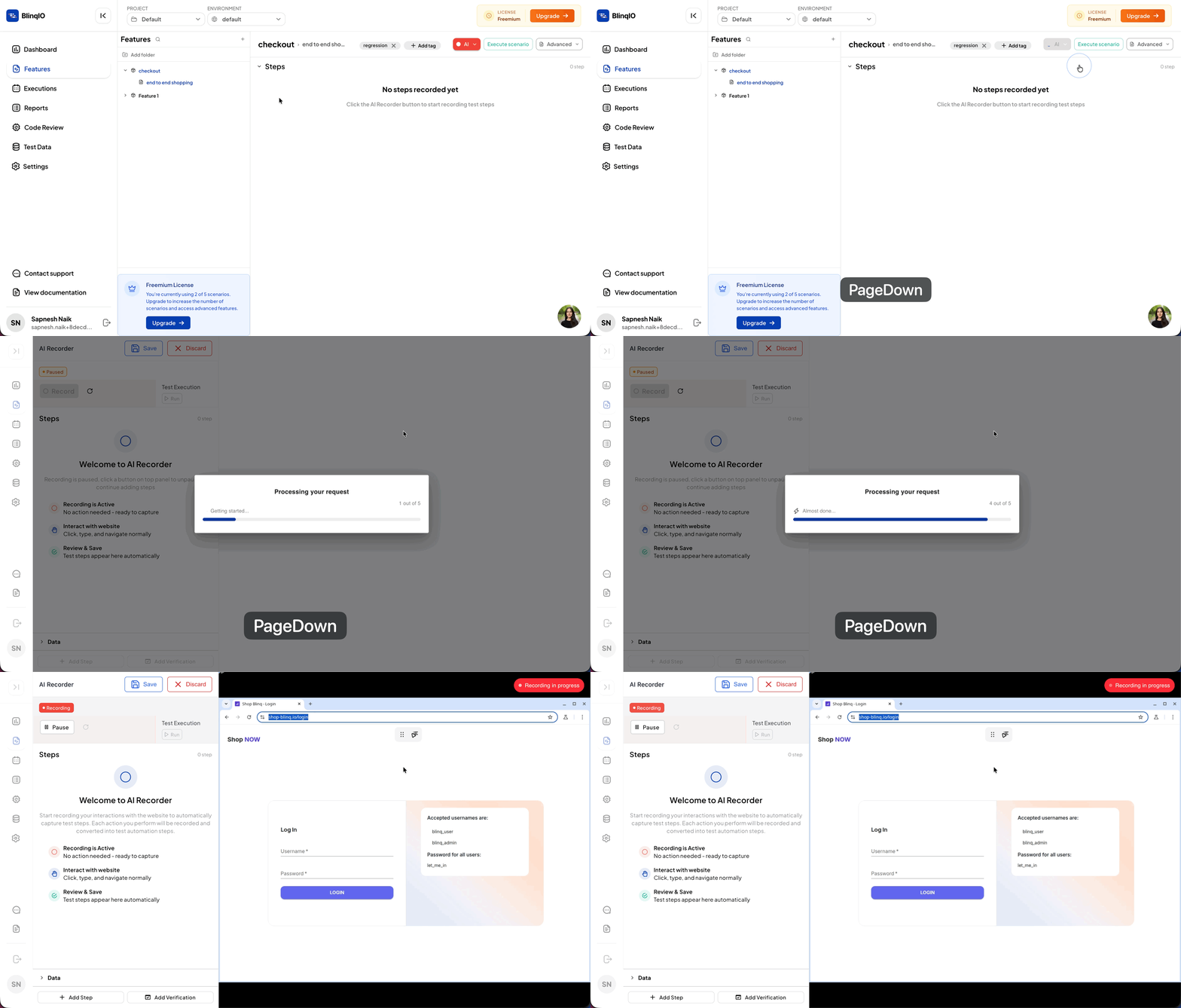
You can now use the AI Recorder as a web application without installing any software on your computer. This streamlined approach lets you start testing immediately without setup or installation requirements.
The web-based AI Recorder is now the default for all new users. Existing enterprise customers retain access to the desktop AI Recorder for Windows and Mac.
Getting started:
Visit the Quick Start Guide to begin using the web-based AI Recorder.
Note
The web-based AI Recorder can only access applications that are publicly available on the internet. If you're testing internal applications that aren't exposed to the internet, use the desktop version of the AI Recorder instead.
Enable Playwright Trace Files for Failed Tests
You can now capture detailed Playwright trace files when tests fail in the BlinqIO Execution Planner. Trace files provide comprehensive debugging information, including network activity, DOM snapshots, and console logs at each step of your test execution.
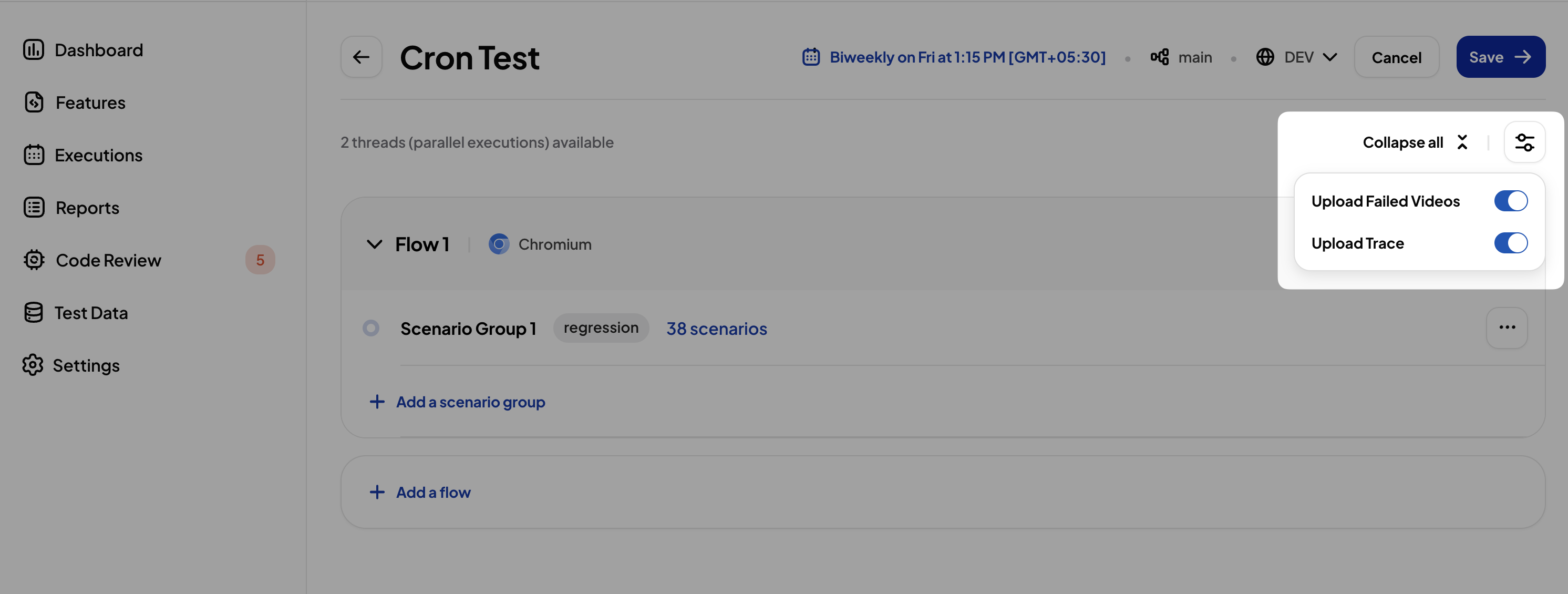
To enable Playwright traces:
- Navigate to the Executions page
- Select and edit your execution
- Click the Configure button in the top-right corner
- Enable the Upload Trace toggle
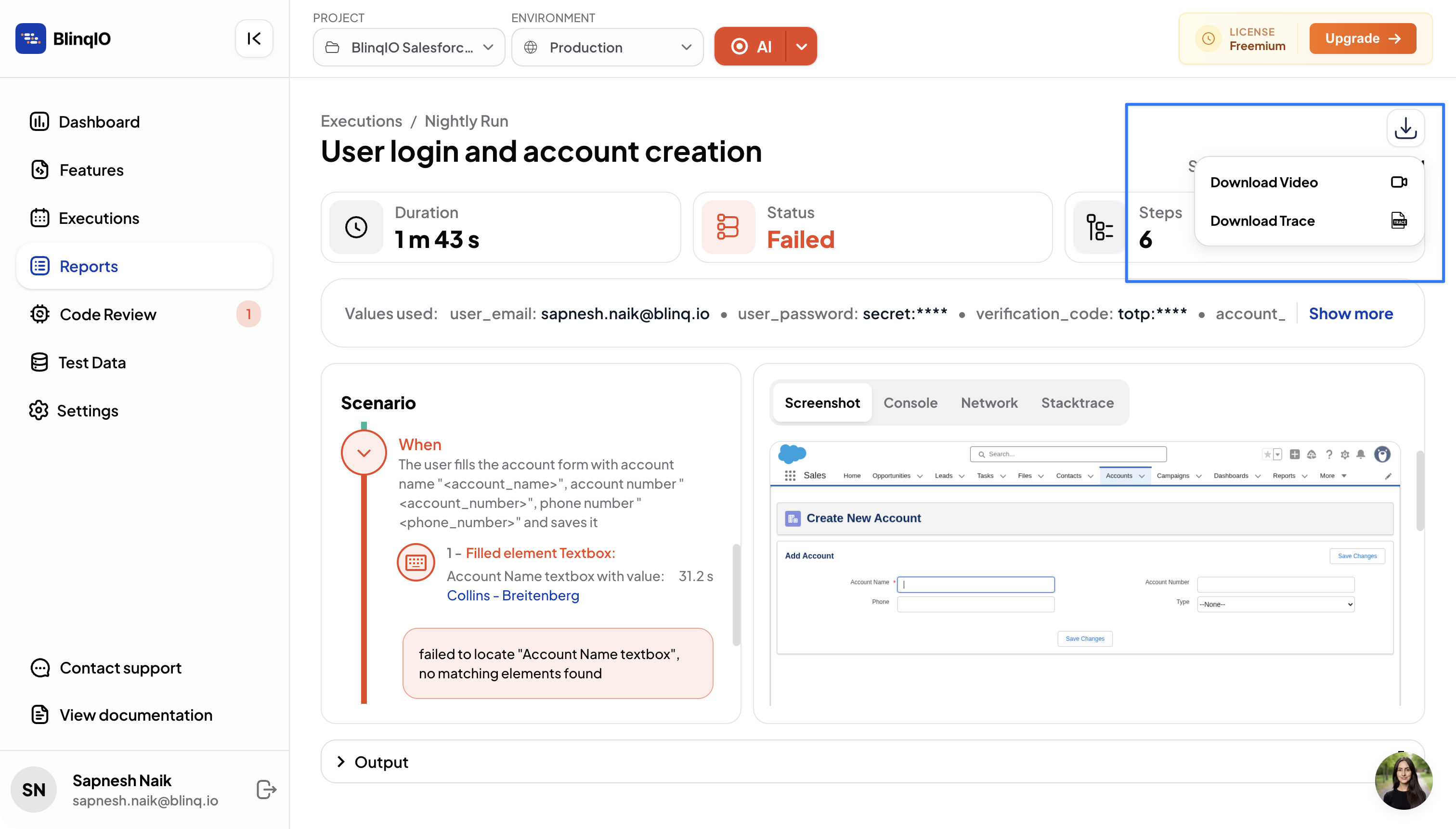
To download trace files:
- Go to the Reports page
- Open the run report for a failed test
- Click the Download button in the top-right corner
- Select Download Trace
To view trace files:
Open your trace file at https://trace.playwright.dev to explore the detailed execution timeline and debugging information.
Note
An integrated trace viewer will be available directly on the Reports page in an upcoming release.
Capture Video Recordings of Failed Tests
You can now record video of test executions in the BlinqIO Execution Planner. Videos are automatically captured for failed tests, providing visual context that makes debugging faster and more effective.
To enable video recording:
- Navigate to the Executions page
- Select and edit your execution
- Click the Configure button in the top-right corner
- Enable the Upload Videos toggle
To download video recordings:
- Go to the Reports page
- Open the run report for a failed test
- Click the Download button in the top-right corner
- Select Download Video
The video shows the complete test execution, helping you identify exactly where and why the test failed.