Add API Steps to a Scenario
You can add API steps to your Gherkin scenarios to validate API responses and perform checks on response fields. This guide will walk you through adding an API call within a scenario using the BlinqIO API app.
Before you begin
- Ensure that you are logged into your BlinqIO account.
- Have a scenario ready where the API call will be added.
Launching the API App
Edit the scenario by adding a new step. You can name the step anything relevant to your test, but ensure that it starts with either
GivenorWhen.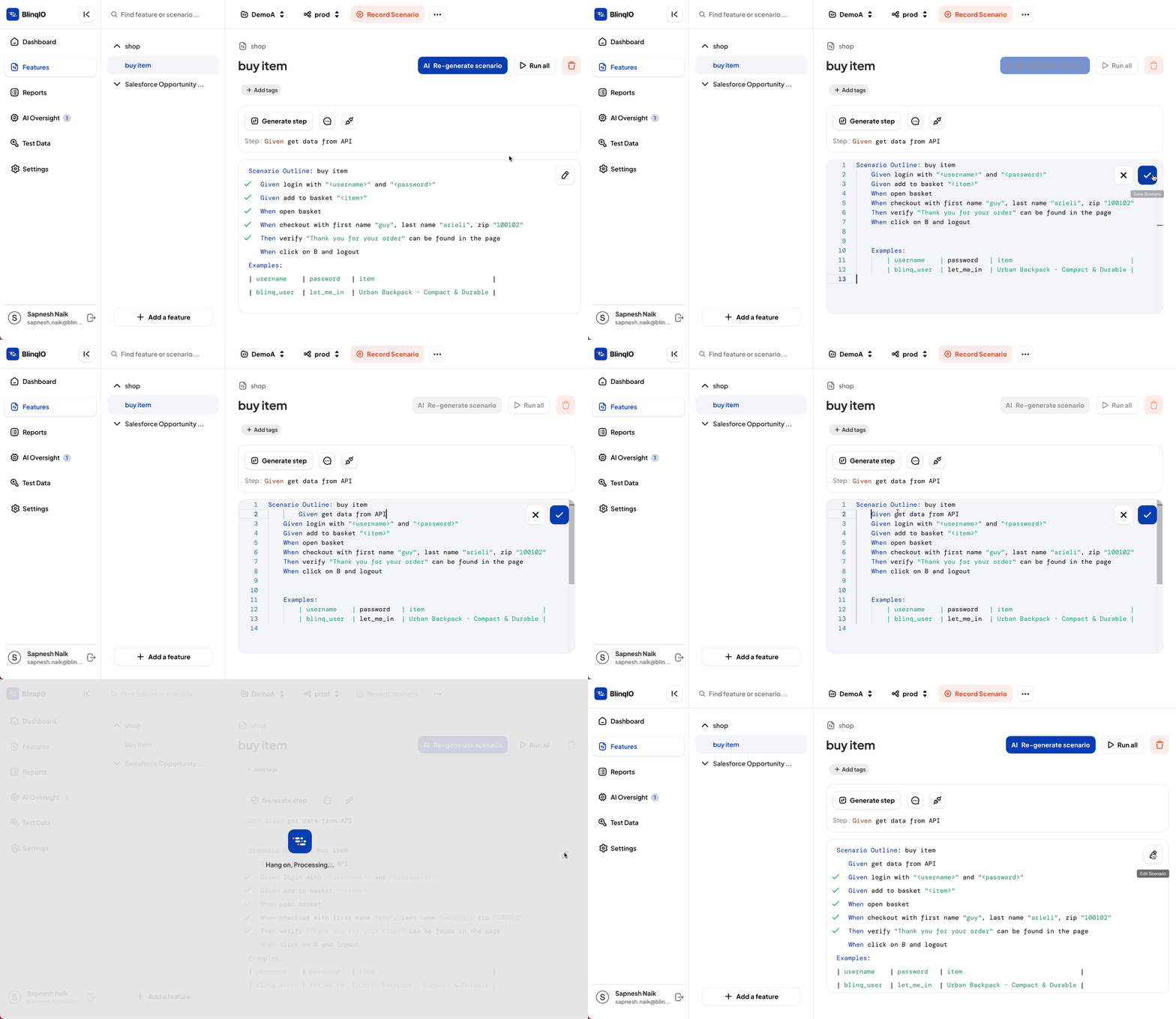
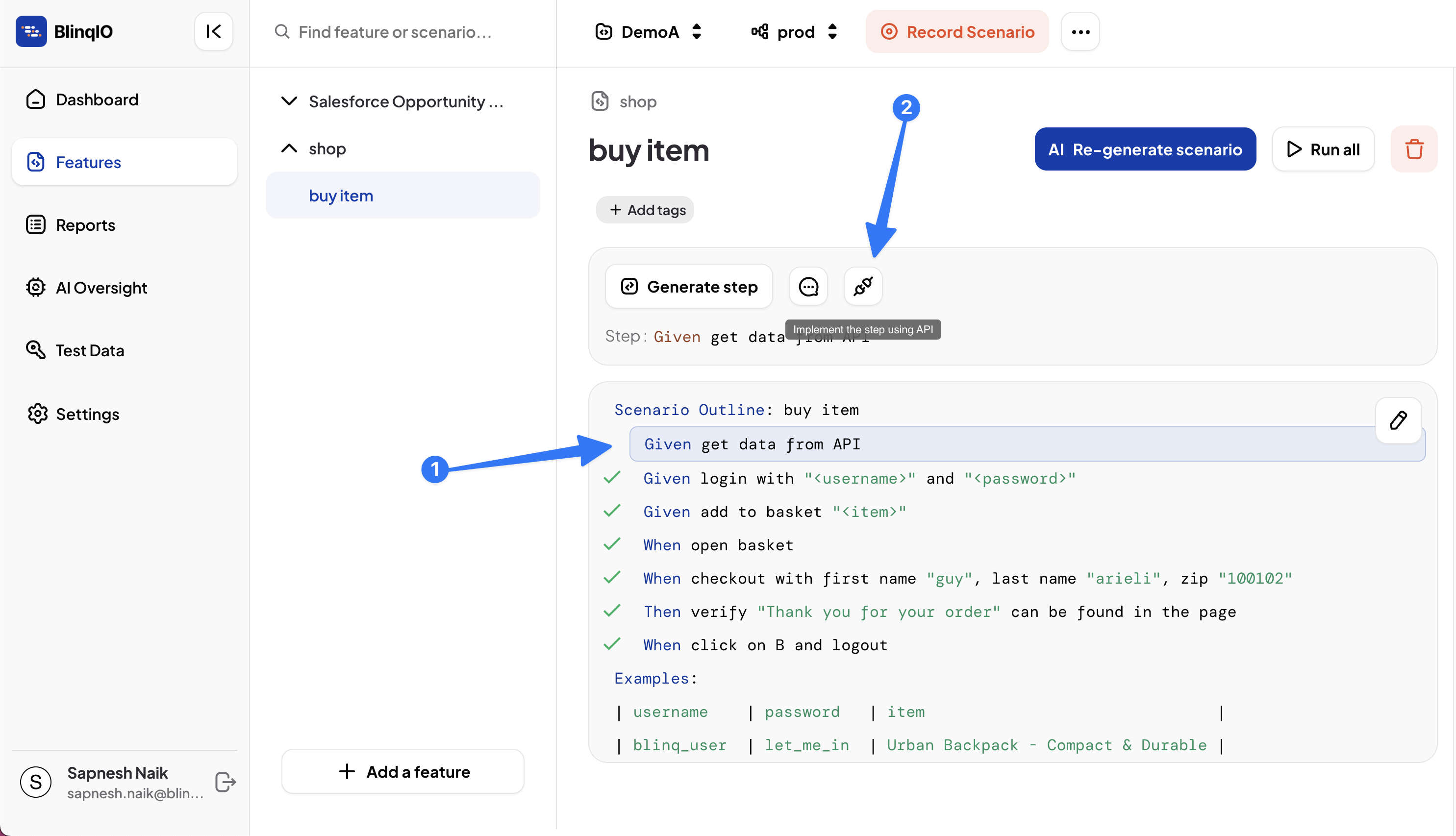
Select the newly added Step and click Add API.
The App launcher page displays.
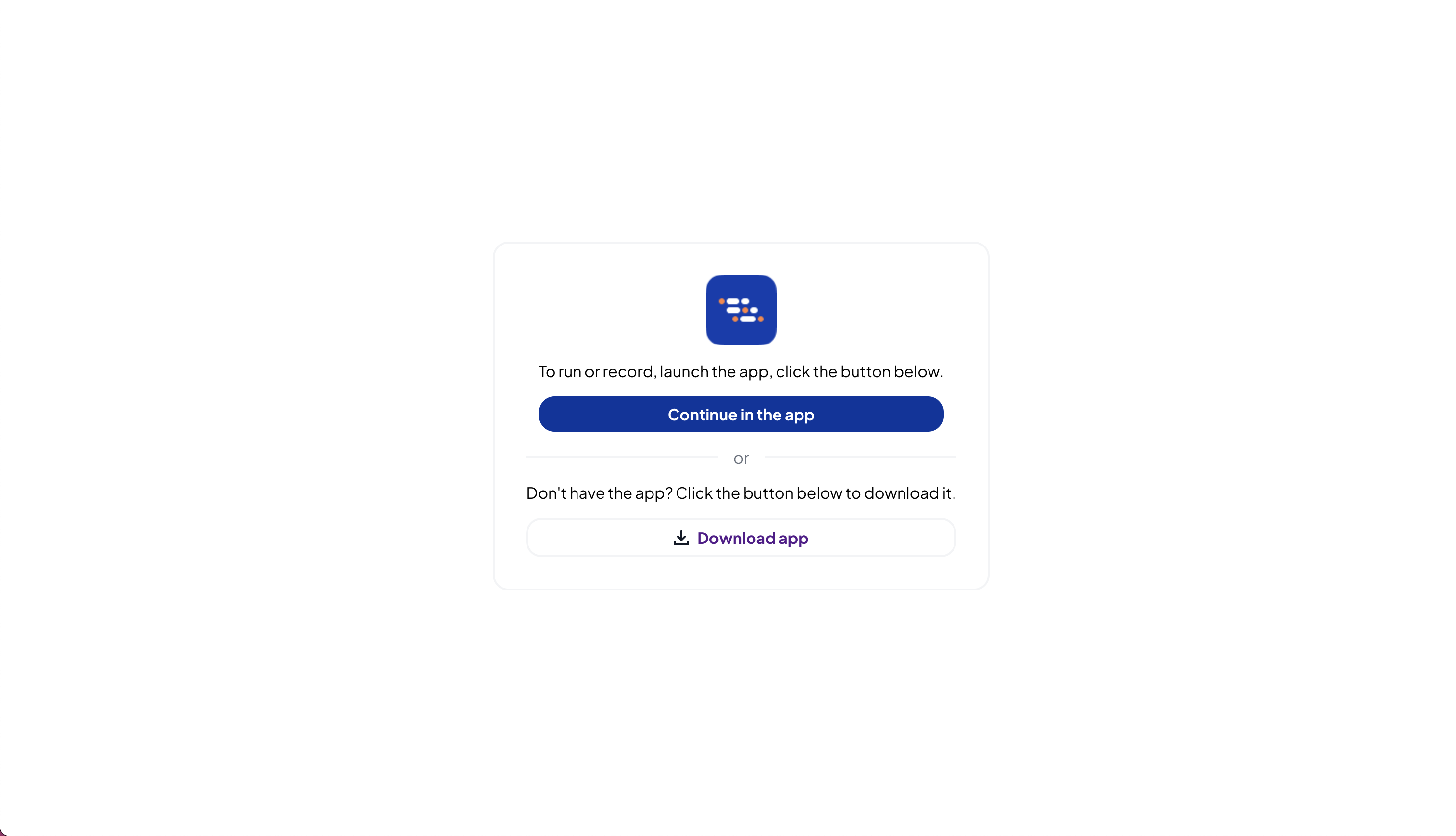
Click Continue in the app to open the BlinqIO API app in your system.
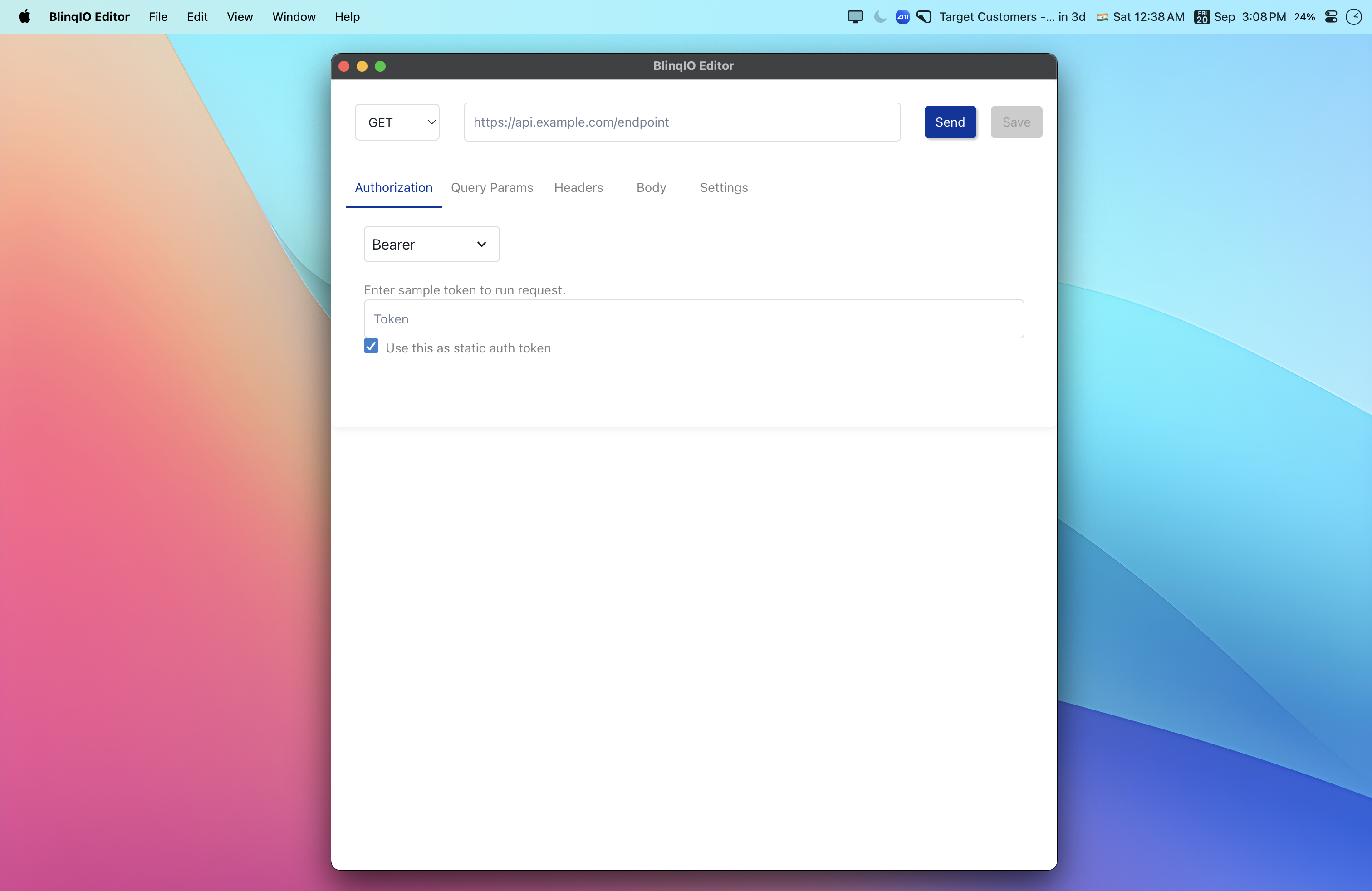
Configuring the API Request
Once the BlinqIO API app is launched, you'll be able to set up the API request by entering the URL and configuring the following options:
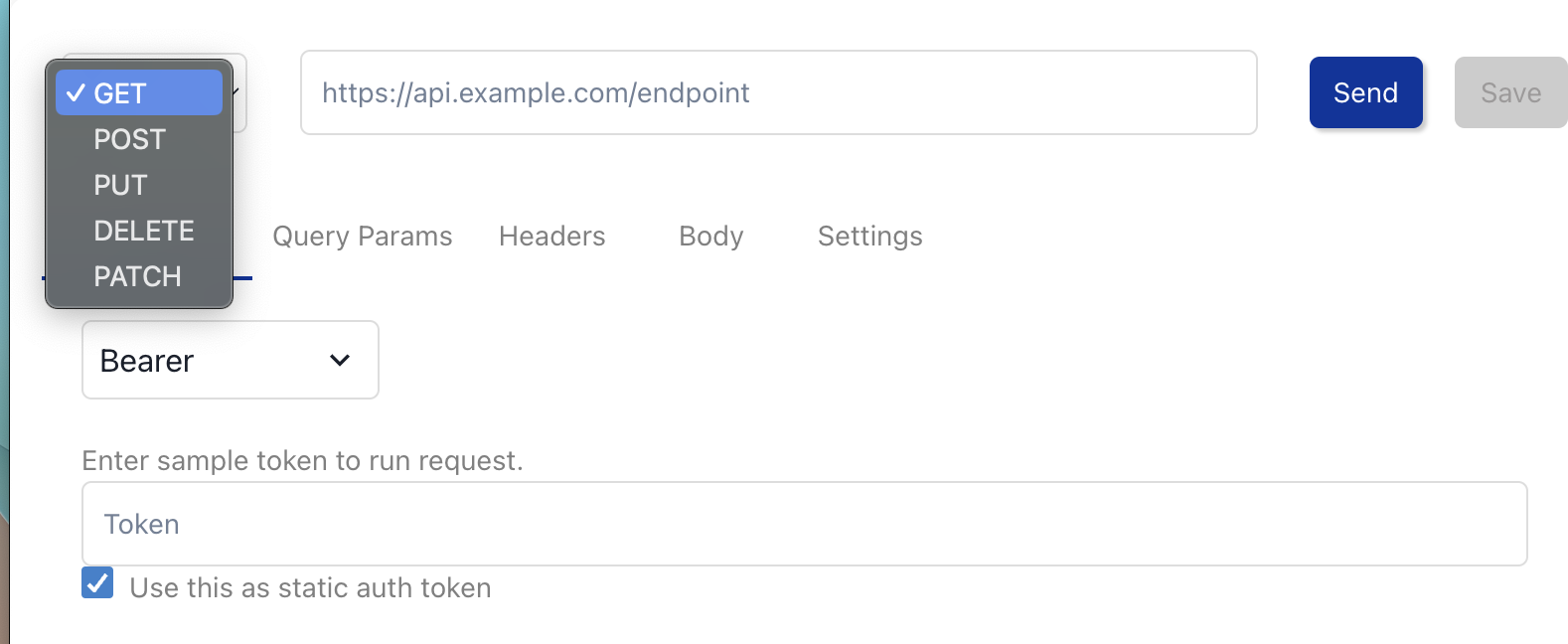
Choose the appropriate HTTP method (GET, POST, PUT, DELETE) based on the API you are testing. The request type determines the nature of the API interaction.
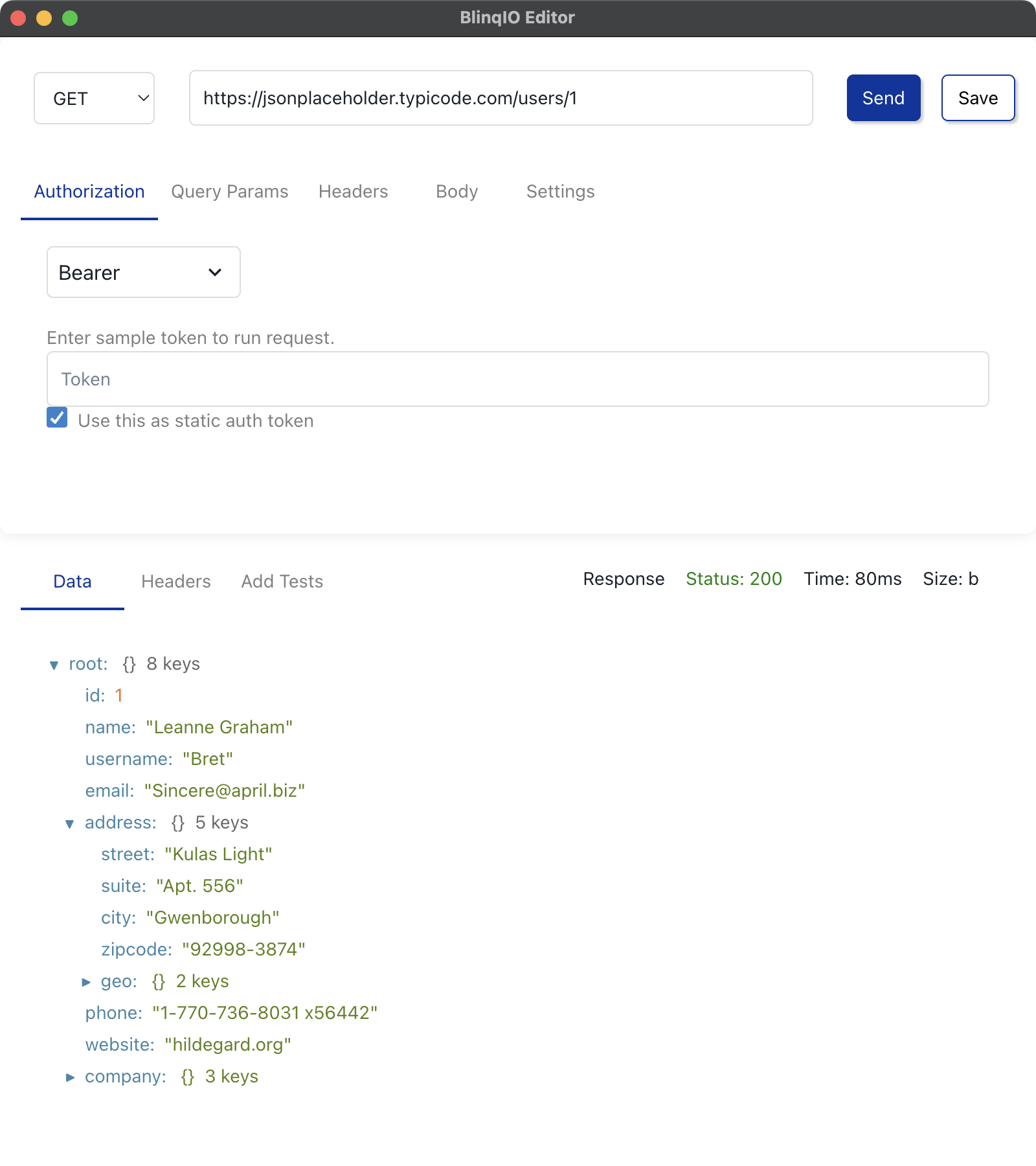
Once all configurations are set, click Send. The API response will be populated in the response section, allowing you to validate the results and perform further tests on specific fields, such as status codes, headers, and response body content.
Adding Tests for Response Fields
You can add tests to check whether the API response data matches what you expect for each test run.
To add API tests:
Switch to the Add Tests tab.
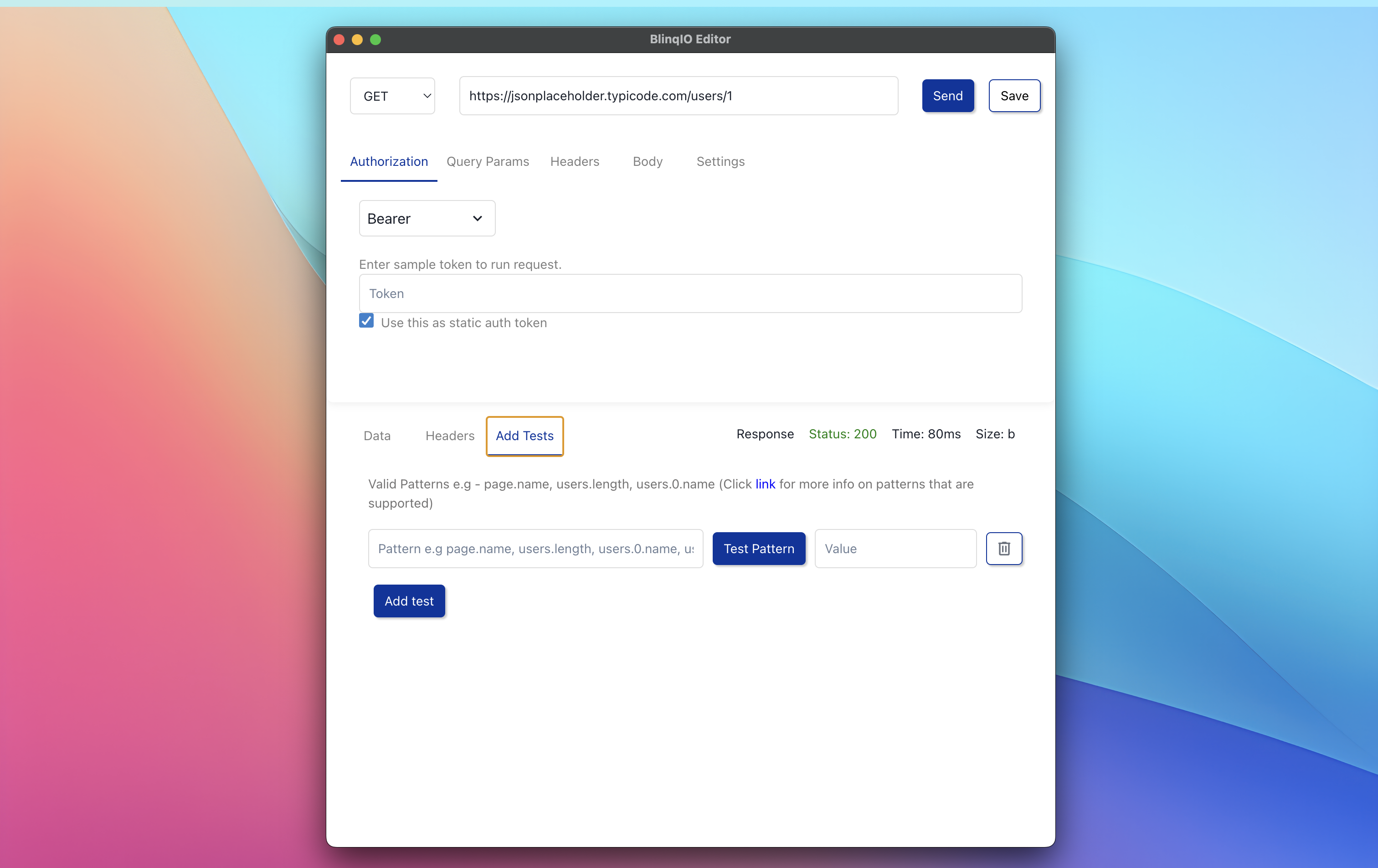
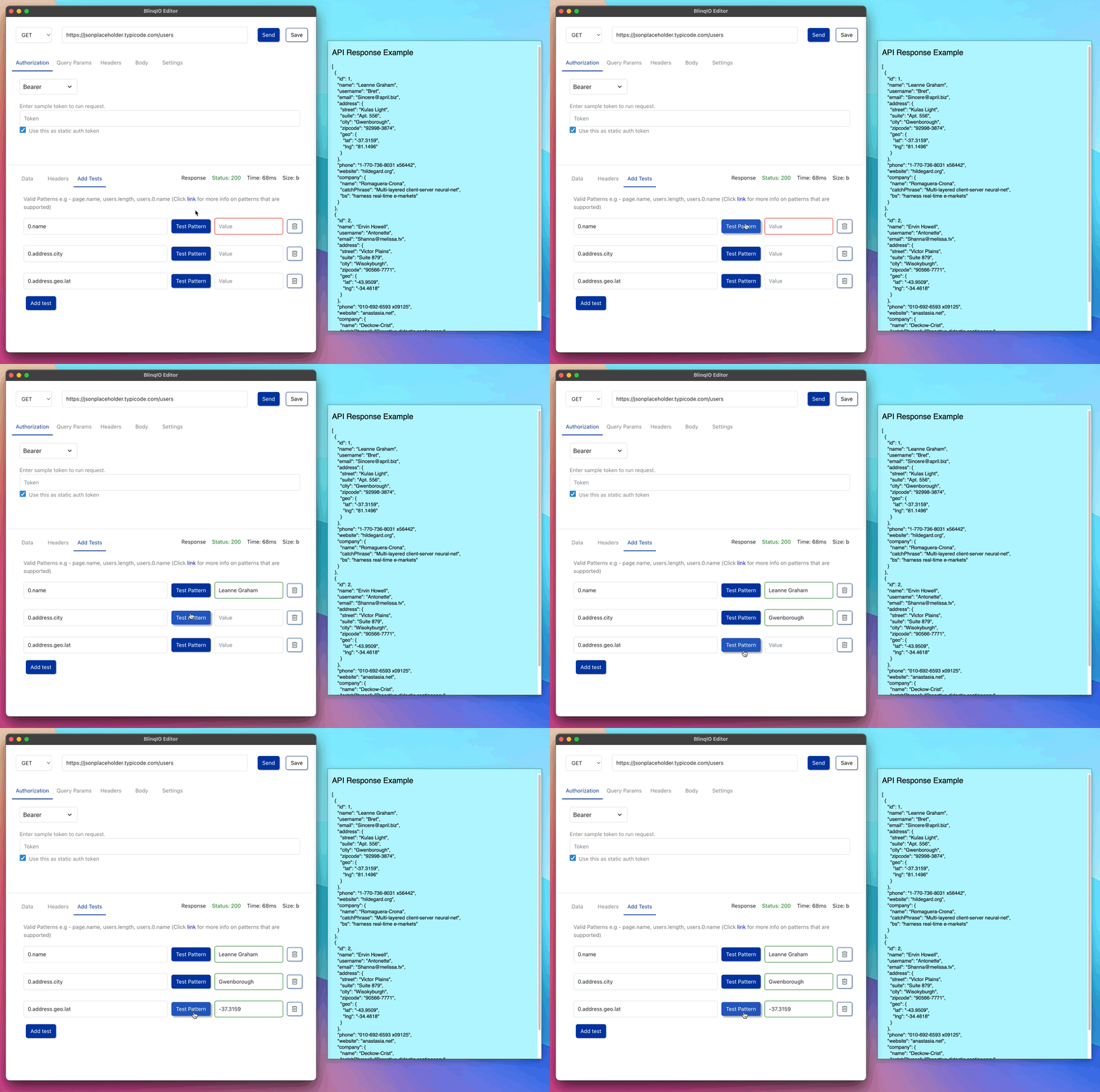
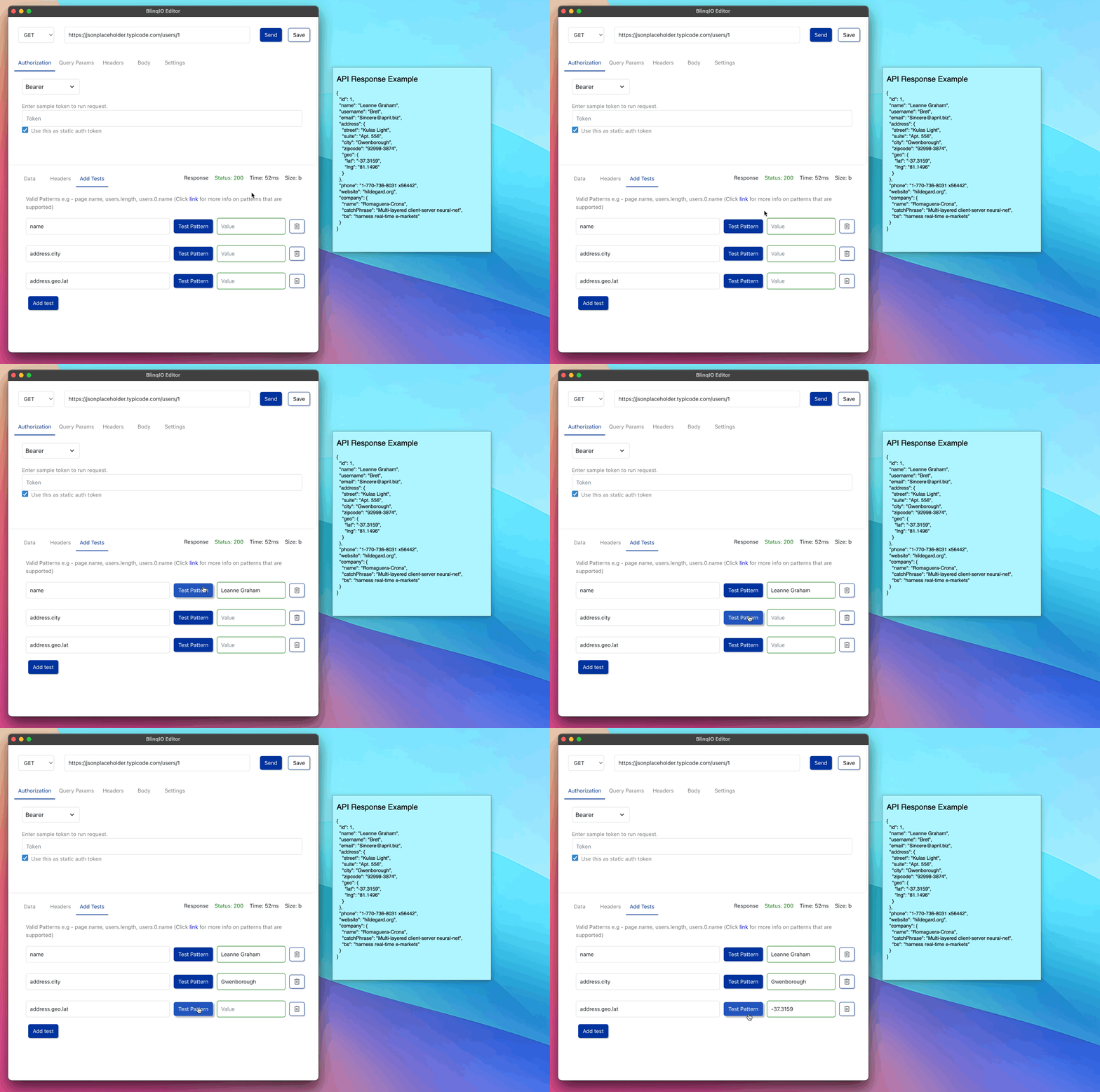
In the Pattern field, specify the response field using an object pattern. Examples include
page.name,users.length,users.0.name,users.*.name.Click Test Pattern to automatically fetch the value from the response data. You can also manually enter a value if needed.
Example 1: Accessing from an array
Example 2: Accessing from an object
Use the Add Test option to include more tests for different response fields as needed.
Saving the API Step
Click Save to store the API step and its tests.
We recommend keeping the Save API response as test data option enabled and providing a namespace value. This ensures that the API response can be reused as test data using the namespace in subsequent steps of the scenario.
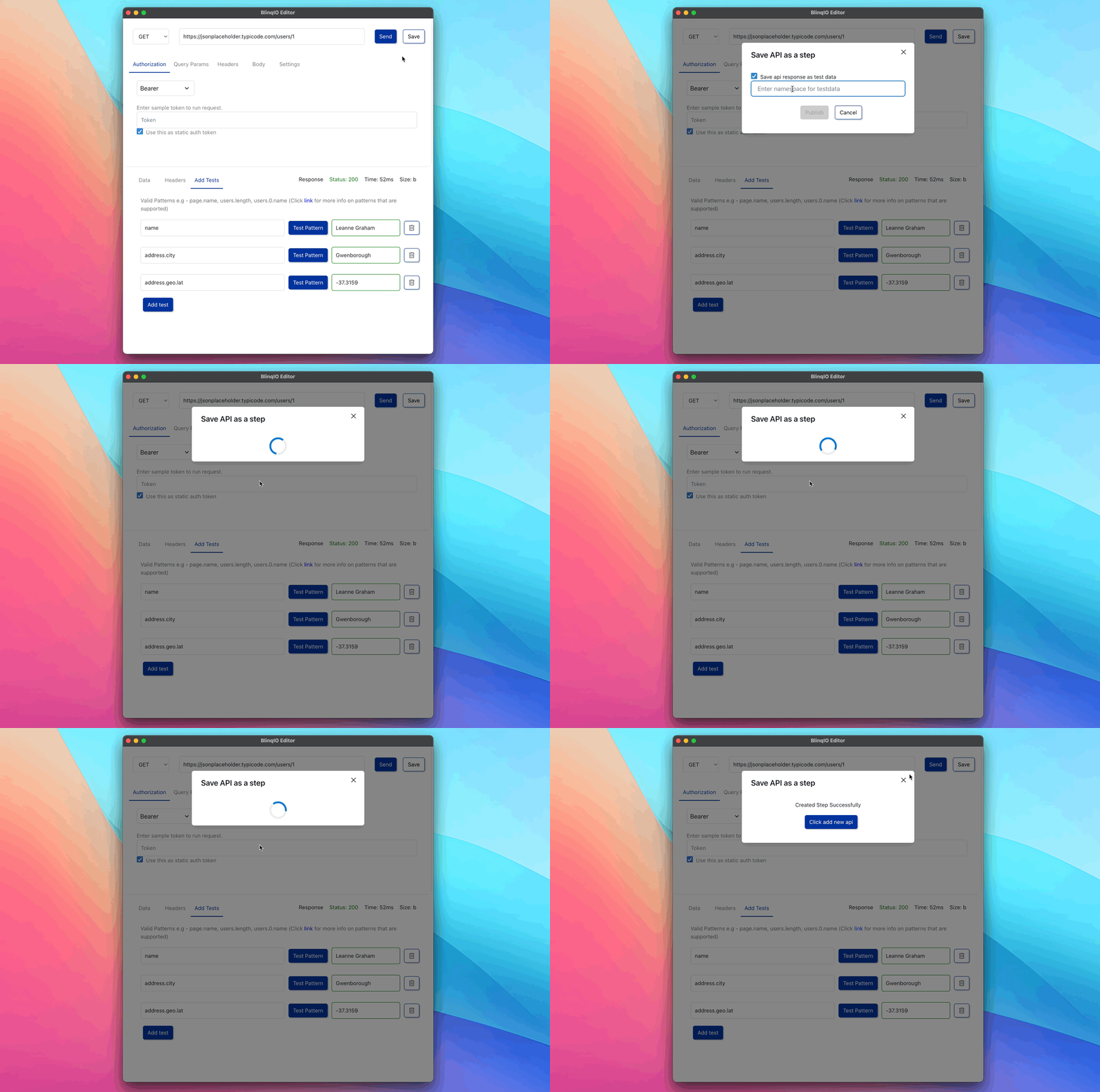
Running the API Step
Once the API step is saved, refresh the scenario page. The step will now display a green checkmark, indicating that the API step has been added successfully.
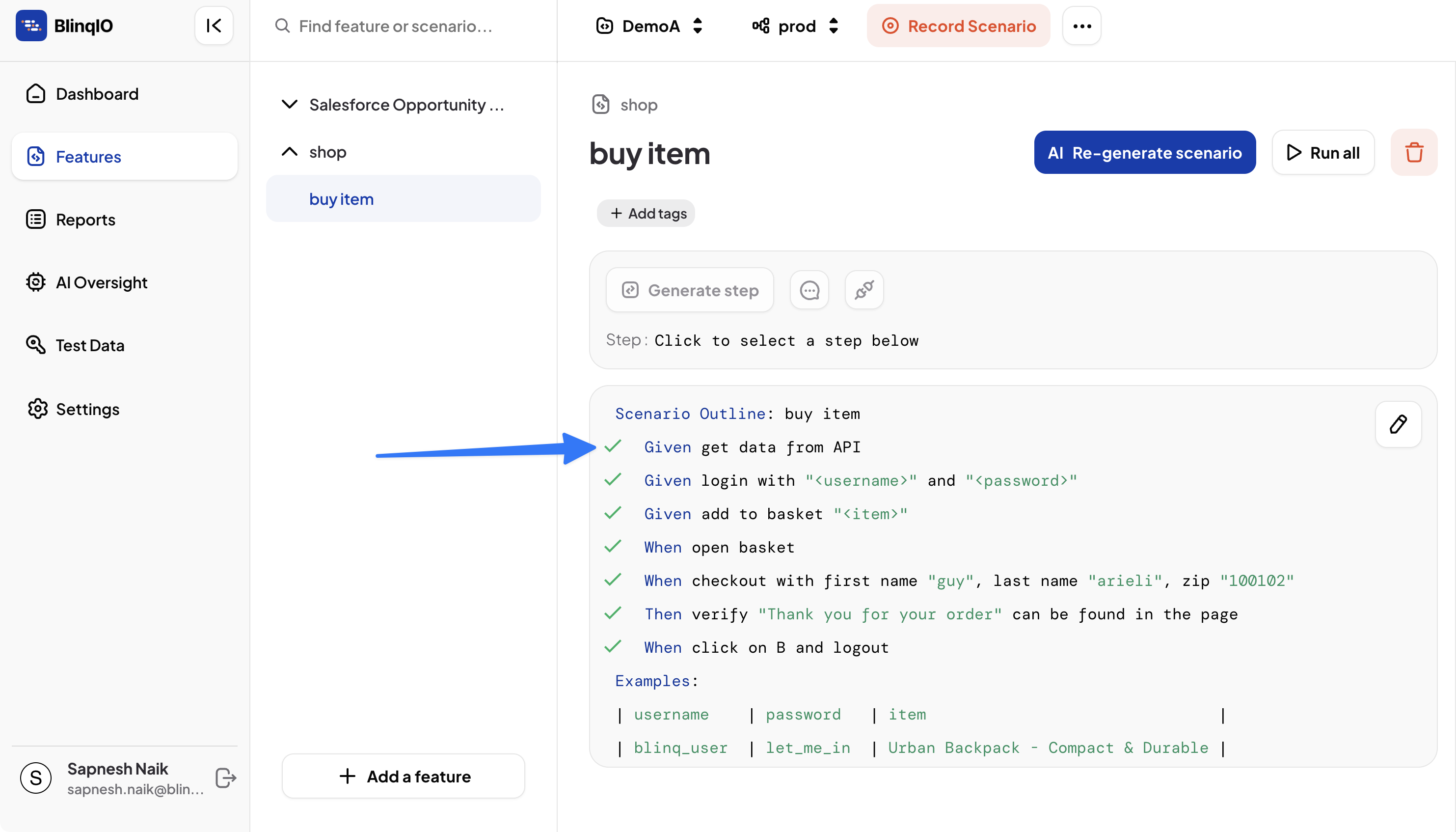
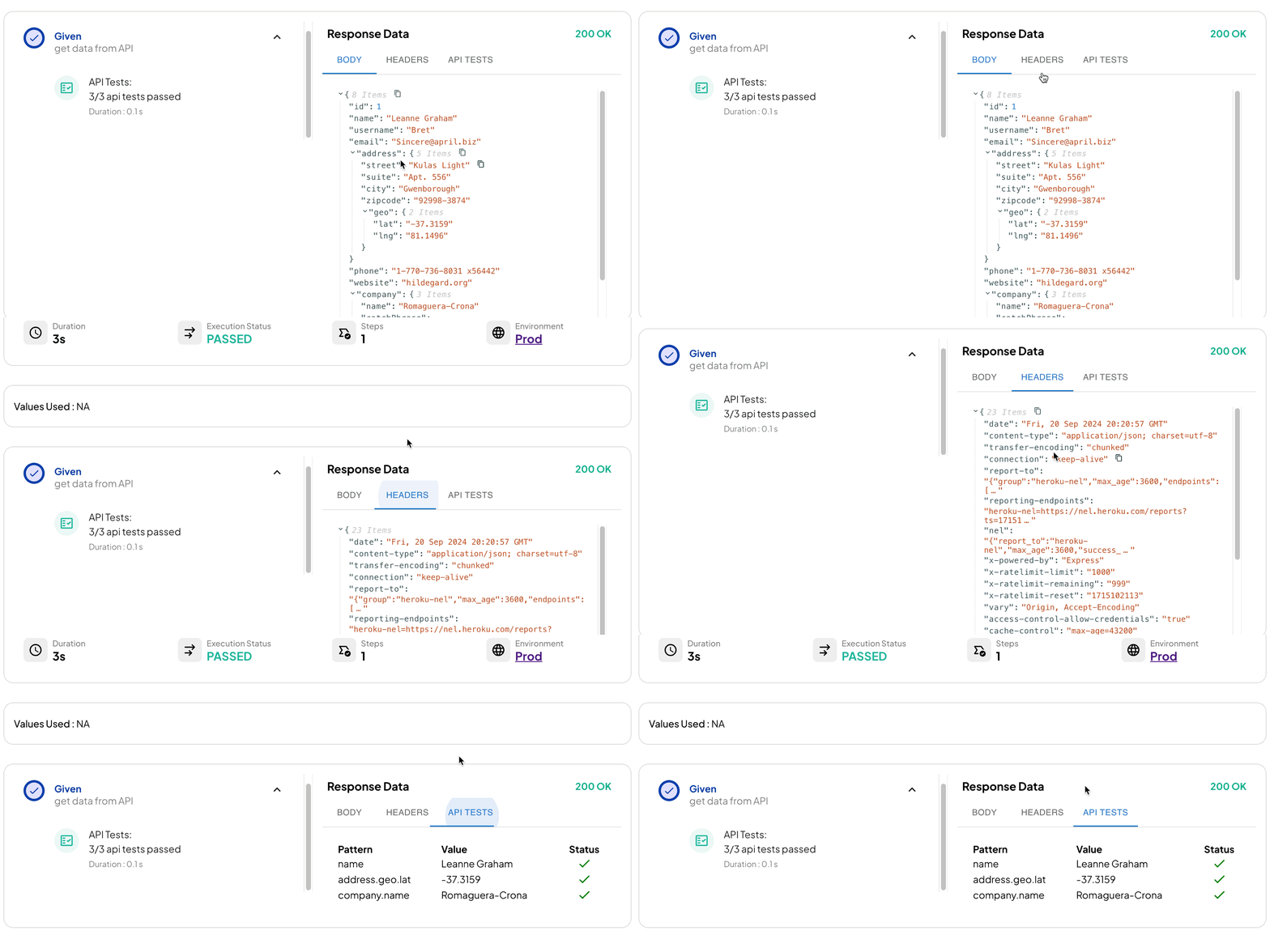
To execute the test, Run All steps in the scenario. The test report for the API step will include:
- Number of tests passed
- Response body
- Response headers
- API test results